Getting started
Getting started
How Prompter is organised, the four production phases, and finding your way around.
Welcome to Prompter — your production's home from the first planning meeting to closing night. Everything for a show lives in one place: your people, rehearsals, budget, show structure, auditions, ticketing, and your public website.
You do not need to set it all up at once. Prompter is built around the natural shape of a production, and features switch on as you are ready for them.
Screenshots show the light theme. The app looks the same in dark.
How to create your account
- Go to get-prompter.app and choose Sign up.
- Give your name, an email address and a password.
- Click the confirmation link Prompter emails you. That link signs you in — there is no separate step afterwards.
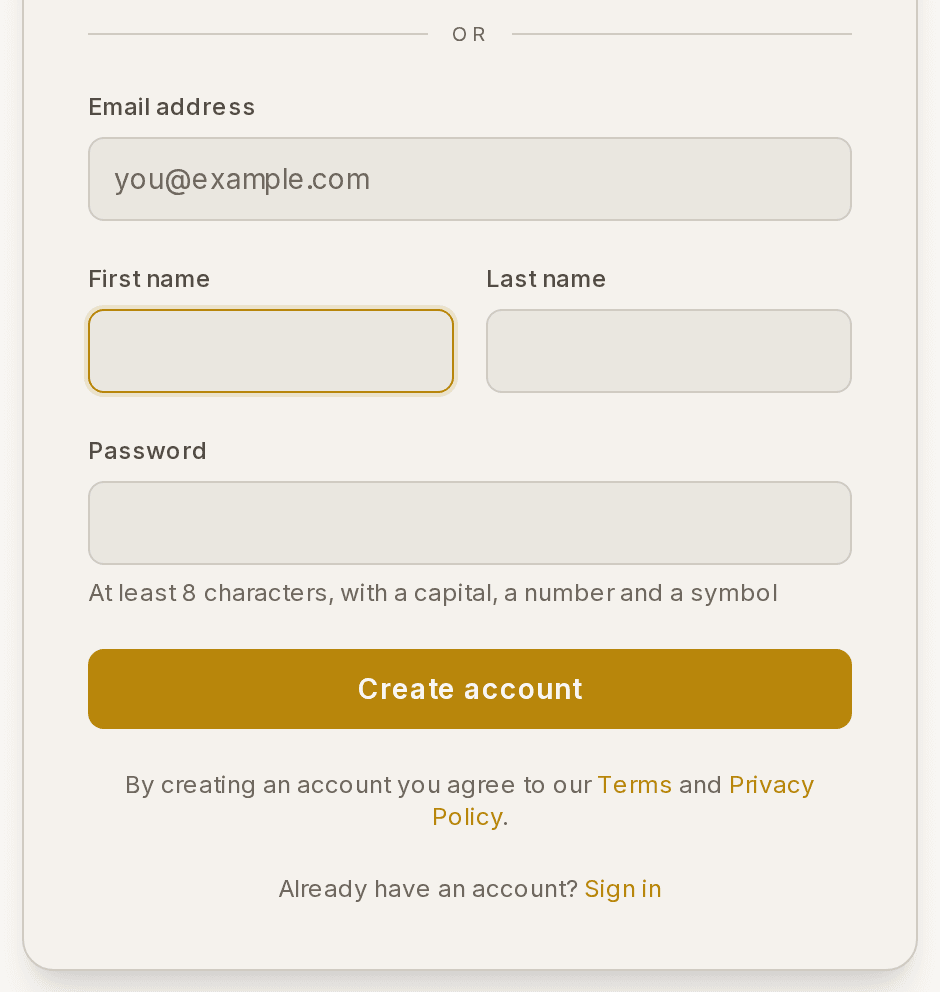
⚠ If nothing arrives, look in your spam folder. The "Check your email" screen can send it again, and it lets you correct the address if you mistyped it.
How to set up your organisation
The first screen asks four things.
- Type your organisation name.
- Choose your web address on Prompter.
- Choose your country.
- Choose the currency you sell tickets in.
⚠ The web address is permanent once set. It is where your audition links and public website live, so it is worth a moment's thought.
The other three can be changed later, with one exception: the currency is fixed once you have sold your first ticket. Your country decides how tax is handled on what Prompter charges you, and the currency follows it by default, so for most companies both are already right.
Once you are in, the organisation dashboard is your home above any single production.
What to do first
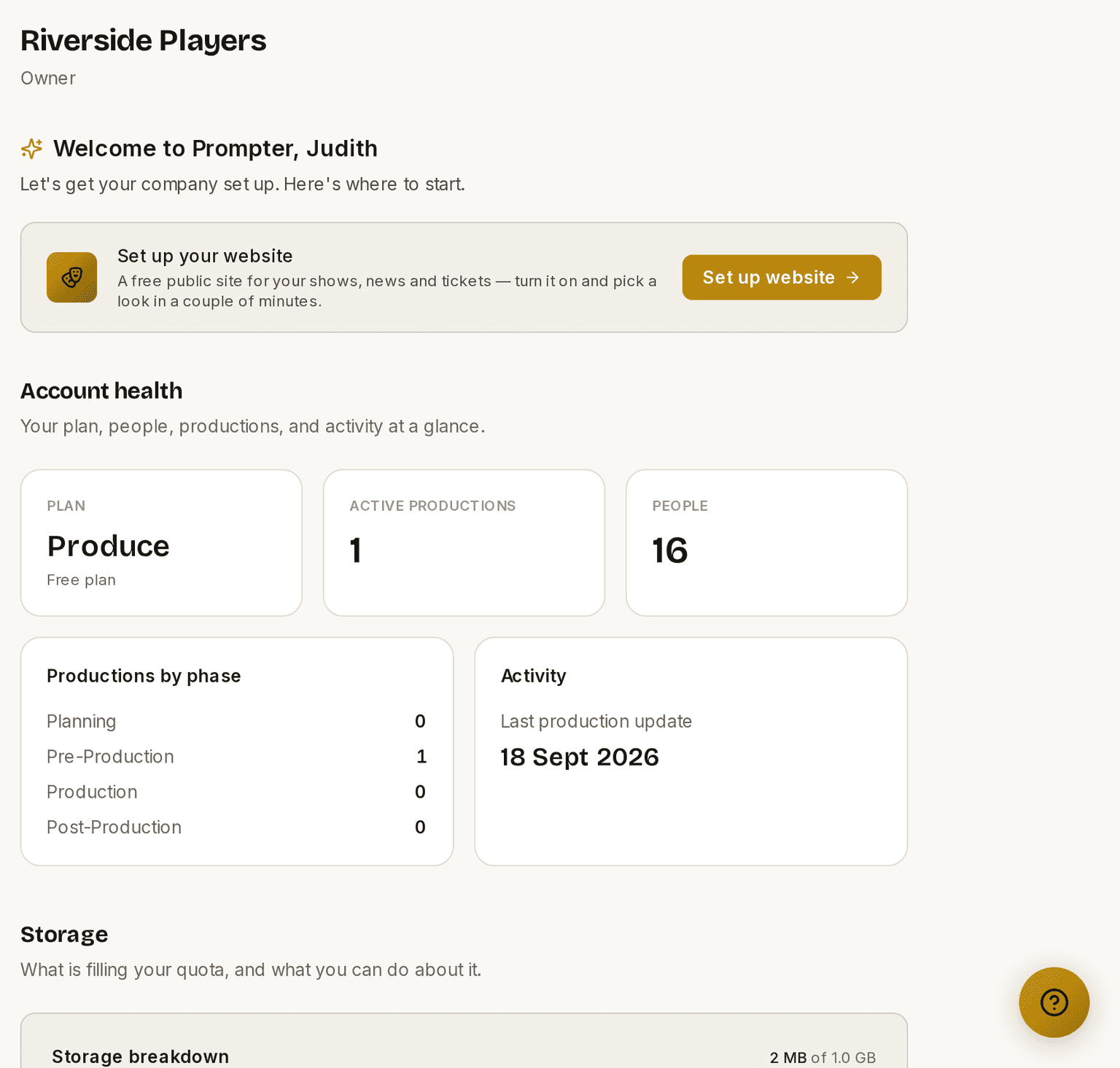
The dashboard opens with "Welcome to Prompter — here's where to start" and a short list of cards. They are in the order the work actually happens.
- Create your first production. This one lives on Produce ▸ Productions, and it is the only step everything else depends on.
- Get your show off the ground. Once a production exists, this card takes you into it. Add your cast and crew, build your scenes and characters, then open auditions. Each step is linked from the production's own dashboard.
- Set up your website, when you want one.
- Sell tickets with Box Office, when you are ready to take money.
A card disappears when you have done it, and the whole section goes once there is nothing left on it.
⚠ Your website and ticketing can wait. They are the last two on purpose. A show runs perfectly well on Prompter with neither switched on, and most companies have plenty to do in the first two before they think about either.
Why your sidebar is shorter than you expected
The left-hand menu is grouped into coloured binders, one per part of Prompter. In your organisation area you will see Organisation, Produce, Presence and Box Office.
Presence and Box Office start folded, because they are switched off for a new company. The coloured header is still there — click it to open the binder, and that is where the switch to turn the module on lives. Nothing is hidden from you and nothing is missing. It simply keeps the twenty-odd pages you do not need yet out of the way of the two you do.
Once you open or close a binder yourself, Prompter remembers your choice on that device.
Confirming your email
When you create an account, Prompter emails you a confirmation link. Click the link and we sign you in — there is no separate step afterwards. If nothing arrives, look in your spam folder; the "Check your email" screen can send it again, and it also lets you correct the address if you mistyped it.
Setting up your organisation
The first screen asks four things: your organisation name, your web address on Prompter, your country, and the currency you sell tickets in.
The web address is permanent once set — it's where your auditions links and public website live — so it's worth a moment's thought. The other three can be changed later, with one exception: the currency is fixed once you've sold your first ticket. Your country decides how tax is handled on what Prompter charges you, and the currency follows it by default, so for most companies both are already right.
The four phases
Every production moves through four phases:
- Planning — building the foundations: your team, the show structure, the budget, and setting up auditions.
- Pre-Production — auditions go live, casting happens, rehearsals begin.
- Production — the show is running; performances and front-of-house.
- Post-Production — wrapping up: final reports, closing the books.
Some things are tied to the phase you're in. The clearest example: your public audition sign-up link only accepts entries during Pre-Production. You advance the phase yourself on the Timeline page — nothing moves on without you.
Finding your way around
The sidebar on the left is your main navigation. What you see there depends on your role (see Roles & access) and which modules your organisation has switched on. A Manager working inside a production sees Dashboard, People, Noticeboard, Show, Auditions, Rehearsals, Meetings, Timeline, Budget, Box Office, Documents, and Presence.
Your organisation area (Settings, billing, all your productions) is separate from any single production — it's where org-wide things like your timezone and logo live.
Light and dark
Prompter opens in a light theme. There's a moon/sun toggle near the top of the sidebar if you'd rather work in dark, and Prompter remembers your choice on that device. It's yours alone — it isn't an organisation setting, so switching it doesn't change what anyone else sees. Prompter doesn't follow your computer's own light/dark setting, so the toggle is the only thing that decides it.
When one of your productions reaches its Production phase, we'll offer dark mode once, if you're not already using it. That's not arbitrary: by then you're likely to be reading a screen backstage, in the booth or in a darkened auditorium, and a bright screen is unkind in all three. Say no and we won't ask again for that show.
Entering dates and times
Every date and time field in Prompter — rehearsals, meetings, tasks, auditions, events, budget, availability — works the same way, and it's worth thirty seconds to learn because you'll use it constantly.
Click the field and you get a calendar, or a list of times in fifteen-minute steps. Or just type, which is usually faster:
- Dates:
5/8/2026,5 Aug,aug 5, or eventodayandtomorrow. - Times:
7pm,730,19:30.
Dates are read day-first — 5/8 is the 5th of August — and Prompter always shows the date back to you with the month spelled out, like 5 Aug 2026. That's deliberate: if it read your typing the wrong way round, you'll see it immediately rather than discovering it on the night.
Times are careful in the other direction. Type a bare 7 and you'll be offered both 7:00 am and 7:00 pm rather than Prompter picking one — a rehearsal called for the wrong half of the day is a bad afternoon for everybody. The exception is an end time, where it can work it out: if the rehearsal starts at 7:00 pm, typing 9 can only mean 9:00 pm.
One nicety on end times: the list shows how long the session would run — 9:00 pm · 1h 30m — so you're choosing a length, not doing arithmetic.
Arrow keys move around the calendar or the list, Enter picks, Escape closes. On a phone or tablet you'll get your device's own picker instead.
Getting help
Once you are signed in, the gold help button sits at the bottom-right of every page. Click it for three things:
- Log a Ticket — report a problem or ask us anything; we reply by email.
- Knowledge Base — this help centre.
- Bard — the AI assistant (Produce+). Inside a show it's for the Manager and HODs; in the Organisation area, for Owners and Admins.
This help centre is public. You can send any of these guides to someone who has no Prompter account — a new committee member, or somebody deciding whether to join you.
If your committee asks how Prompter looks after your members' information, Security & data answers it: where the data is kept, who else handles it, how one company is kept apart from another, and what is not finished yet. Fuller documentation is available on request.
The email from Roscoe
Roscoe built Prompter, and he writes to the owner of every new organisation personally — and again if you later subscribe to Produce+. It comes from hello@get-prompter.app and arrives the morning after you sign up, not the moment you do.
It is a real email from a real person, and replying to it reaches him directly. If something is confusing, broken, or missing, that reply is the shortest route to getting it looked at.
These guides describe Prompter as it works today. Create a free account to try it, or see what it costs.