Running your production
Meetings
Schedule production and committee meetings with agendas and attendees.
The Meetings area keeps your production and committee meetings in one place, separate from rehearsals, so planning conversations do not clutter the rehearsal schedule.
You will find it under Production in the menu on the left. It has two tabs: Meetings and Tasks.
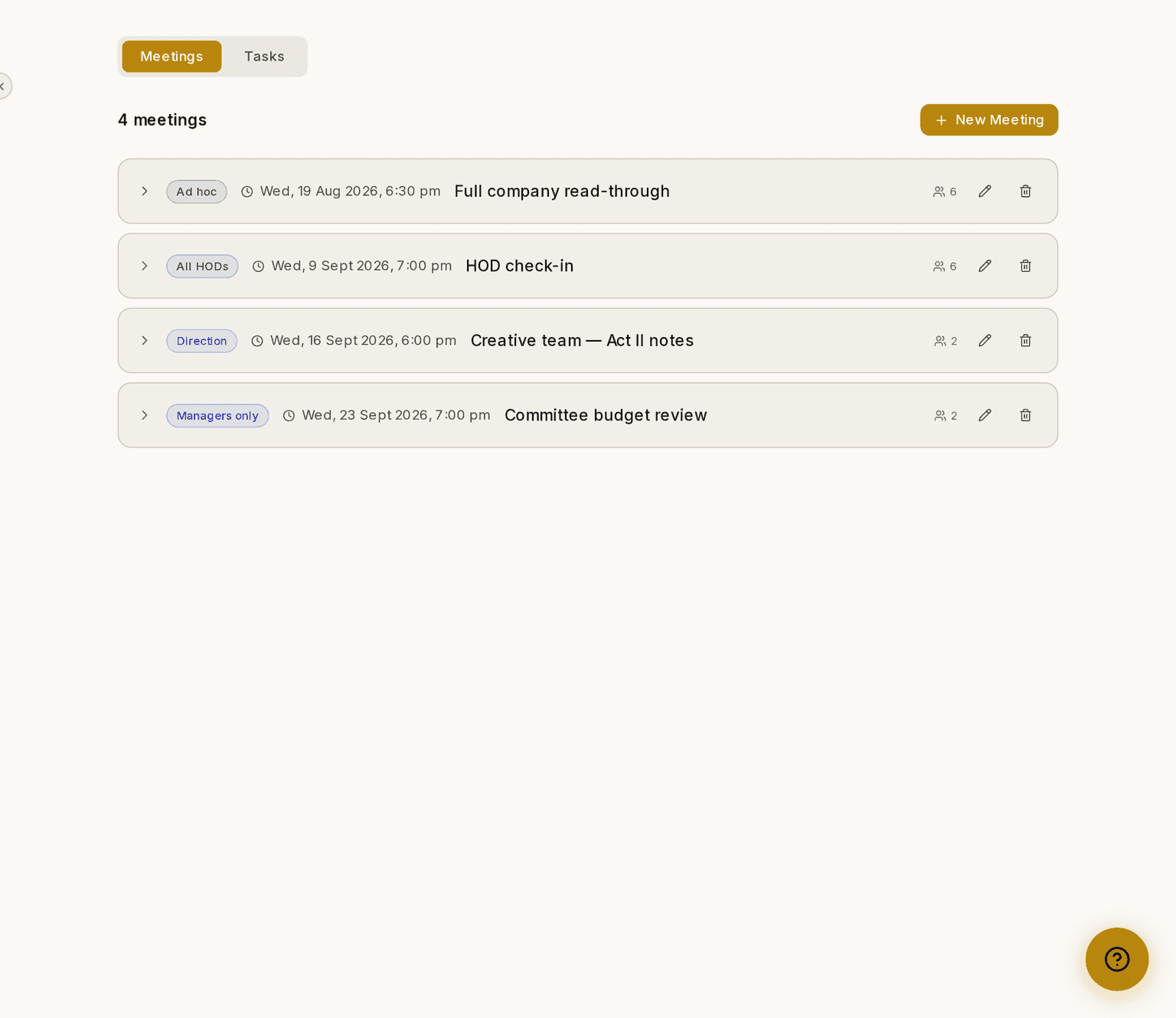
Screenshots show the light theme. The app looks the same in dark.
How to schedule a meeting
- Open Meetings.
- Click New Meeting.
- Type a Title.
- Choose Who can see this? — this decides who is invited and who can read the minutes afterwards.
- Set the Date, the Time and a Location.
- Add Attendees if the audience you chose does not already cover them.
- Save.
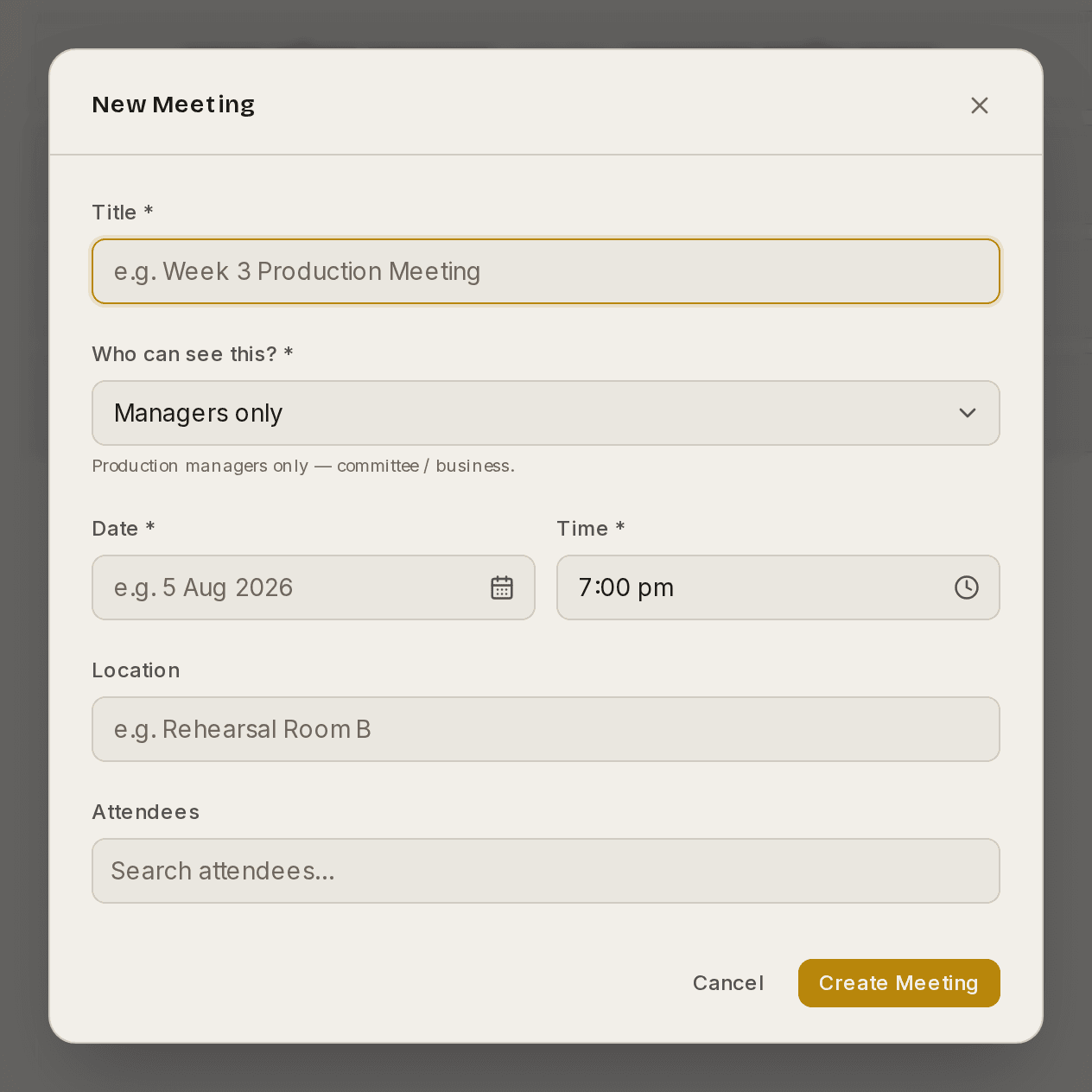
Each option under Who can see this? carries a one-line explanation, so you can tell Managers only from All HODs without guessing.
Meeting times use your organisation's timezone, which you set in Organisation ▸ General.
Who can see a meeting
- Managers see every meeting.
- HODs and cast and crew see the meetings that apply to them. A department meeting shows to everybody in that department; an ad-hoc meeting shows to the people named on it.
- Management-only meetings stay private to the team running the production.
For anybody other than a manager, Meetings is read-only. They see what they are part of; scheduling and editing stay with managers and HODs.
If a decision needs to reach the whole company, post it to the Noticeboard instead.
How to assign a task
Action items from a meeting become tasks.
- Open Meetings ▸ Tasks.
- Create a task and give it an assignee, a due date and a priority.
- Save.
Prompter notifies that person in the app and by email.
A task assigned to you appears in your own My Tasks — both a card on your dashboard and a page in the sidebar. You can tick it off when it is done and keep your own notes against it. Creating, reassigning and deleting tasks stays with managers and HODs.
These guides describe Prompter as it works today. Create a free account to try it, or see what it costs.