Public site & ticketing
Your public website (Presence)
The public site Prompter builds for your company, and how to theme it.
Presence is your organisation's public website — a proper site for your company, generated from what's already in Prompter and living at [your-web-address].get-prompter.app. It shows your current and upcoming shows, and can carry your auditions and ticketing.
You will find it under Presence in the menu on the left.
Screenshots show the light theme. The app looks the same in dark.
Switching it on
Your website is off until you turn it on. Until then, Presence shows you this:
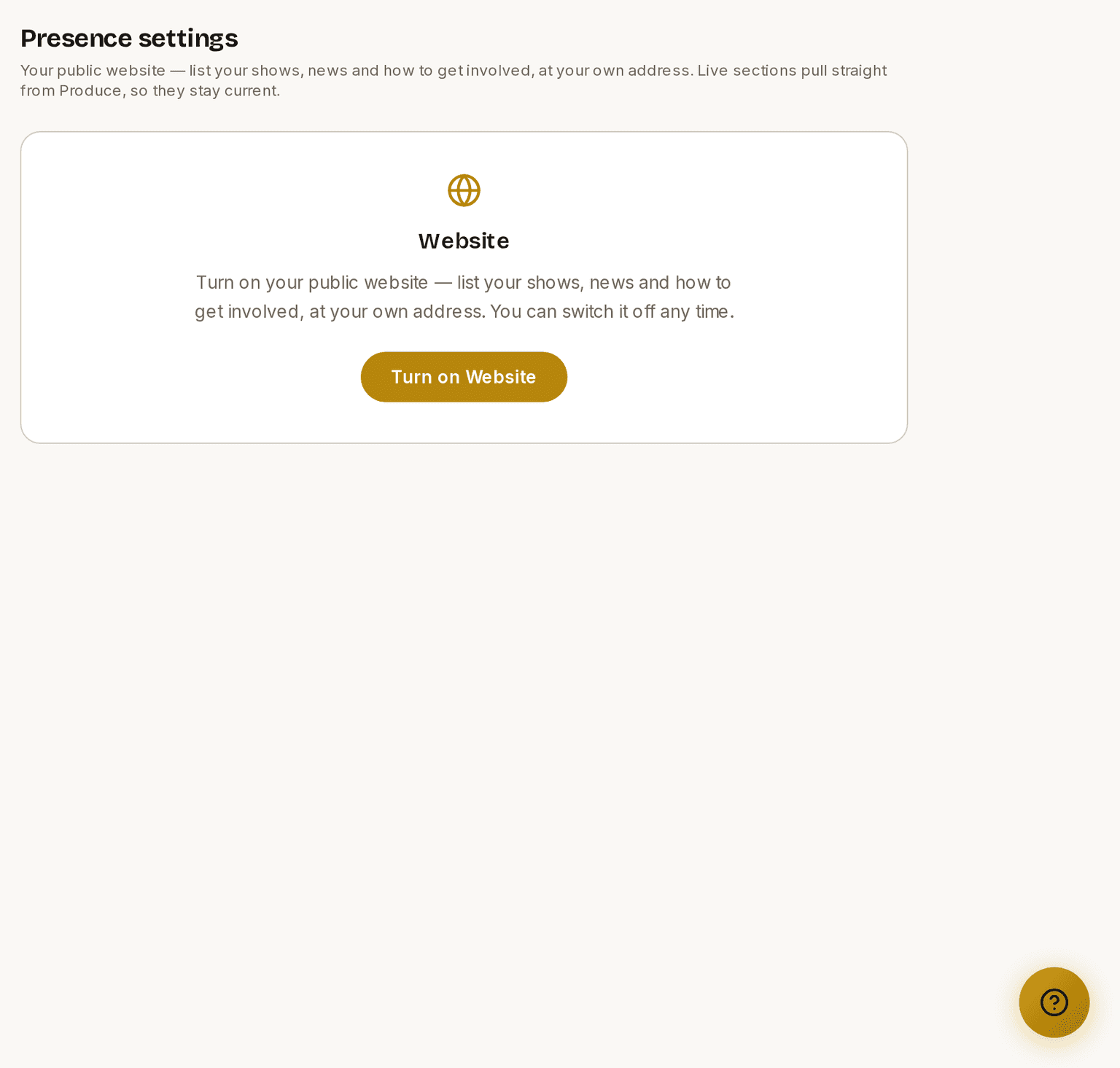
Presence is an opt-in module. Turn it on for your organisation when you're ready for the public to see it; until then, your data stays private. Your web address (subdomain) is claimed when you create your organisation and is yours permanently — it's your address on Prompter whether or not the public site is switched on.
Switching it on does not publish it
Turning the module on opens the website editor. It does not put anything in front of the public. Take as long as you like over the design and the wording — nobody can see it yet.
Your site goes live when you press Publish. Until then, anyone who visits your address sees a short holding page that says the site isn't available right now. The page carries your name, your logo and your contact email if you've set one, so a visitor can still reach you.
Prompter asks before that first Publish, and names the shows and events that are about to appear. You can turn a show's public switch off first if you're not ready for people to see it.
Auditions are not affected. An open audition session stays public whether or not your website is published — so a link on a poster keeps working while you are still building the site.
Publishing doesn't put any tickets on sale. That's the Box Office module, and it's a separate switch.
Taking your site offline again
Presence ▸ Settings has a Take site offline button. Visitors see the holding page again, and your pages, design and settings are all kept — press Publish whenever you want it back. Your auditions keep working throughout.
This is different from switching the module off, which hides the website and closes the editor with it.
Using your own domain
On Produce+ your website can live at your own address — yoursociety.org instead of your Prompter one. You will find it under Organisation ▸ Details, beneath your web address.
We set custom domains up with you personally at the moment rather than through the form, so get in touch and we will connect yours. It is a short job: you add two records at whoever you bought the domain from, and we do the rest. DNS changes usually take a few minutes, though they can occasionally take up to 48 hours.
Both yoursociety.org and www.yoursociety.org will work — one redirects to the other, and you choose which is the main one. Once it is live, your own address is the one search engines use, the one your website links point at, and the one on any new audition links you share.
Your Prompter address never stops working. It keeps serving alongside your own domain, so nothing is lost and nothing breaks if you ever remove the custom one.
If your subscription lapses
Your domain keeps serving for three months, and we will warn you four times before anything changes — by email and in the app. Renew at any point in that window and it carries on untouched.
If the three months run out, the domain is released and your website goes back to your Prompter address, which never stopped working. Nothing is deleted, and your productions, people and ticketing are unaffected. Search engines take a little while to catch up, and any printed links to your own domain will stop working — which is why we warn well ahead.
How to set your society details
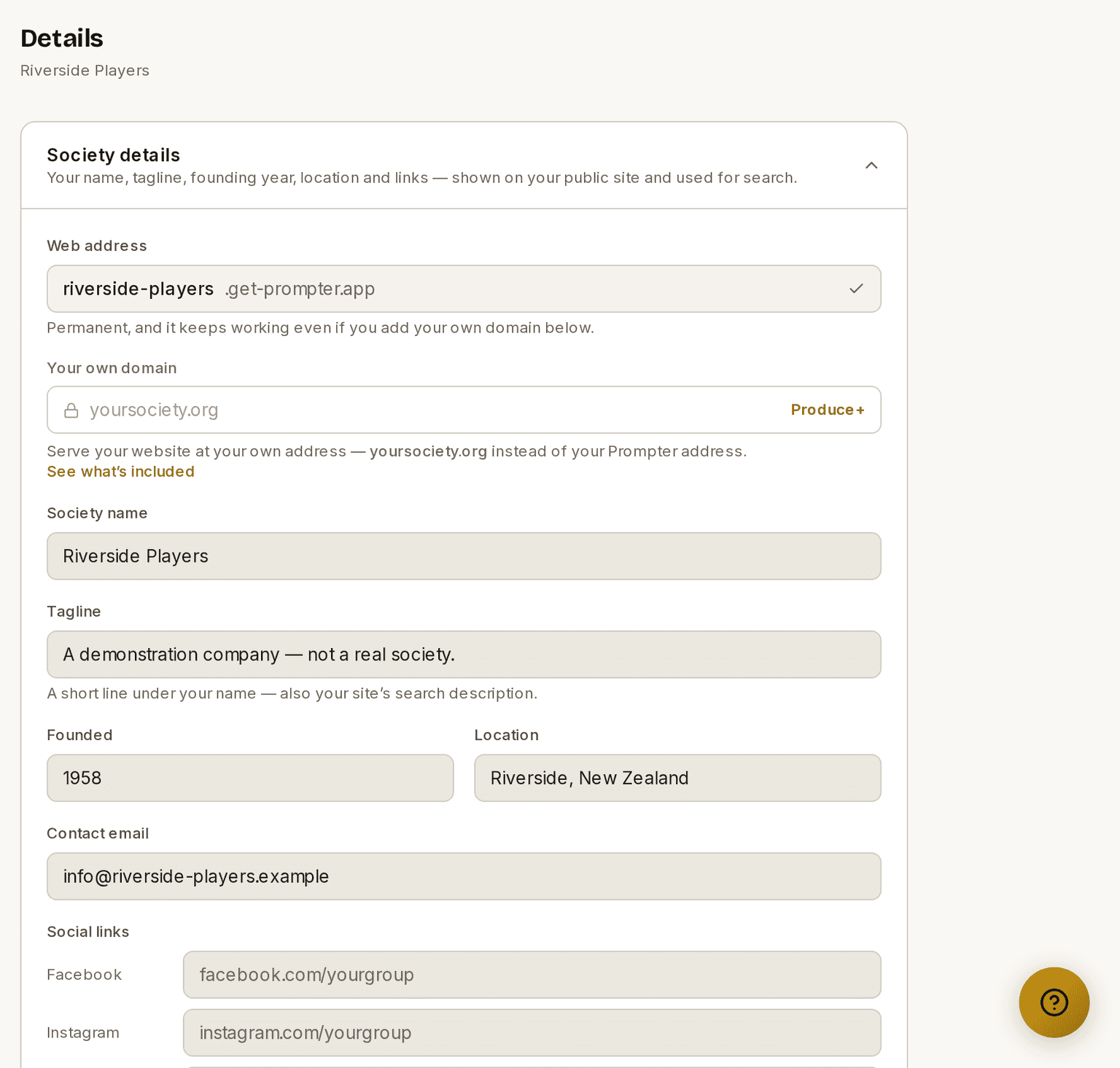
These are what your public site shows about your company, and what search engines read.
- Open Presence ▸ Details.
- Check your web address. It is permanent, and it keeps working even if you add your own domain.
- Fill in your name, tagline, founding year, location and links.
Designing your site
The Website editor is split into two tabs. Design is the look; Content is what's on the page (your sections and share embed).
On the Design tab, start from one of four templates:
- Marquee — bold and dark
- Footlights — colourful
- Playbill — a classic serif. The only template that shows no banner photograph unless you turn one on; its cover is typographic by design.
- Spotlight — clean and minimal
Then make it yours with a one-click colour palette — a set inspired by well-known musicals, grouped Warm, Cool, and Bold — as a starting point you can fine-tune. From there you can adjust your brand colours, fonts, and corner style, and Reset to template any time to clear back to the template's own look.
You can also match a look from a URL — point it at your existing website and Prompter proposes a matching theme. If your organisation hasn't set a logo yet, matching will also pick one up from that site and save it for you. It never replaces a logo you've already chosen, so you can match as often as you like. You get five matches a day.
Why a section you switched on isn't showing
Some sections hide themselves when they have nothing to show. That is deliberate: a band with a heading over empty space reads as a page that failed to load, not as a section you haven't written yet.
Seven can do it — On Stage, What's On, News, Venue Hire, Past Productions, About and Get Involved — and so can a text or embed block. Your Hero always appears.
You don't have to guess which. In Content, any section that is switched on but would publish nothing is marked Won't appear, with a line underneath saying what would fill it:
Nothing to show yet. Add an event, give it a future date, and set it to public.
So if your News section seems to have vanished from your site, the usual answer is that you have no published posts yet — not that something broke.
- Open Presence ▸ Settings.
- Choose the Content tab.
- Look for a Won't appear badge on any section.
- Do the one thing the line underneath names.
The badge only shows on sections you have left switched on. One you deliberately hid with the eye icon stays quiet, because you already know why it isn't there.
Drafts and publishing
Your edits save automatically to a private draft, so nothing you change goes straight to the public site. A live preview shows the draft as you work — and you can pop it out into its own window to keep it beside the editor while you tweak.
When you're happy, hit Publish to make it live. Discard rolls the draft back to whatever's currently published. This means you can redesign in the open, take your time, and the public only ever sees your published site until you choose to publish again.
Your logo
Your logo is managed in org Settings (not here), because it's used across auditions, ticketing, and emails as well as Presence — see Organisation settings. The Presence editor shows a read-only preview with a link to manage it.
The one exception is match a look from a URL above: if you have no logo yet, matching saves the one it finds on your site. Once you have a logo, only Settings can change it.
Your banner image
Your banner image — the wide photograph across the top of your site — is uploaded in the same place as your logo, under Presence ▸ Branding. See Organisation settings.
Which image you use is an organisation fact, so it lives with your logo. How it is presented is a page fact, so it stays here: open the Content tab and the Hero section to crop it, set its focal point, add an overlay, or hide the hero text.
⚠ If you uploaded a banner and can't see it on your site, check these two before anything else:
- Your template. Marquee, Footlights and Spotlight all show it. Playbill does not — it draws a typographic cover instead. Tick Show this image behind the cover in the Hero section to use a photograph with it.
- The Hero section is turned on in the Content tab.
The upload itself is never the problem — it saves immediately, and you'll see it as a thumbnail in Branding.
Auditions and tickets on your site
The public site ties in with the rest of Prompter. During Pre-Production an Auditions button appears for shows taking sign-ups, and when the Box Office is open your Buy Tickets button goes live. Both are driven by the production's phase and settings, so your public site stays honest about what's actually available.
Every show you've marked public also gets its own page — click the poster (or More info) on an On Stage or Past Shows card and you land on a full page for that production: the image, the season dates and venue, your description, the same Buy Tickets / Auditions button, and any performing-rights billing exactly as you entered it. It's the natural thing to share when you post about a show.
Writing what the public reads
Open the production, then Presence ▸ Public Website, and fill in Show details: a subtitle ("or, The Town of Titipu"), a tagline (one line to sell it), the venue, the first and last performance dates, and a description — the blurb your audience reads. The subtitle, tagline, venue and dates also appear on your On Stage cards, so filling this in is what makes both the cards and the show's page worth looking at. Add the poster under Public Images, and the licensing credit under Rights & Billing.
Events and news
Your Presence area is more than the site editor. Alongside Settings (the editor above) you'll find:
- Events — social nights, workshops, AGMs and the like, which can appear in a What's On section on your site. See Events.
- News — short organisation updates (a season announcement, a review, a call for volunteers). Write a post under Presence ▸ News, give it a title and body, and publish it to show it in the News section of your public site — pinned posts lead. Save it as a draft to finish later; drafts stay private until you publish.
- Reach — a simple read on how many people are finding your public site.
Putting your shows on your own website
If you already have a website of your own, there's a What's On embed — a small block of code you paste into your own site that shows your current shows with live Buy Tickets and Auditions buttons, kept up to date from Prompter. You'll find it on the Content tab of the Website editor.
You do not have to publish a Prompter website to use it. Switch the Website module on so you can reach the editor and copy the code, then leave your Prompter site unpublished. The embed keeps working on your own site. If you keep your own website, that is usually what you want — there is no reason to run a second site you will not maintain.
What the embed shows is still your choice, show by show. It lists only the productions and events you have marked to appear publicly, exactly as your Prompter site would. So a show you have not made public yet stays private on your own website too.
You can also skip the embed and use plain links. Your audition sign-up link and your Buy Tickets link work whether or not your public website is on, so they can go on buttons on your own site.
A note on plans
Every organisation gets a full public site, and your own site shows your own logo on every plan — it should look like your company's, not ours. What the free plan carries instead is a small "powered by Prompter" line in the footer of each page, which Produce+ replaces with a quieter one-line credit.
Everywhere Prompter acts on your behalf, the free plan shows the Prompter mark: your ticket buy page, your audition pages, and the confirmation and reminder emails we send your buyers and applicants. On Produce+ those carry your logo instead.
These guides describe Prompter as it works today. Create a free account to try it, or see what it costs.