Running your production
Rehearsals & schedule
Build call sheets, send calls, track attendance, and manage availability.
The Rehearsals area is where you schedule rehearsals, decide who is called, send the call out, and keep track of who turned up.
You will find it under Production in the menu on the left. It has three tabs: Schedule, Attendance and Availability.
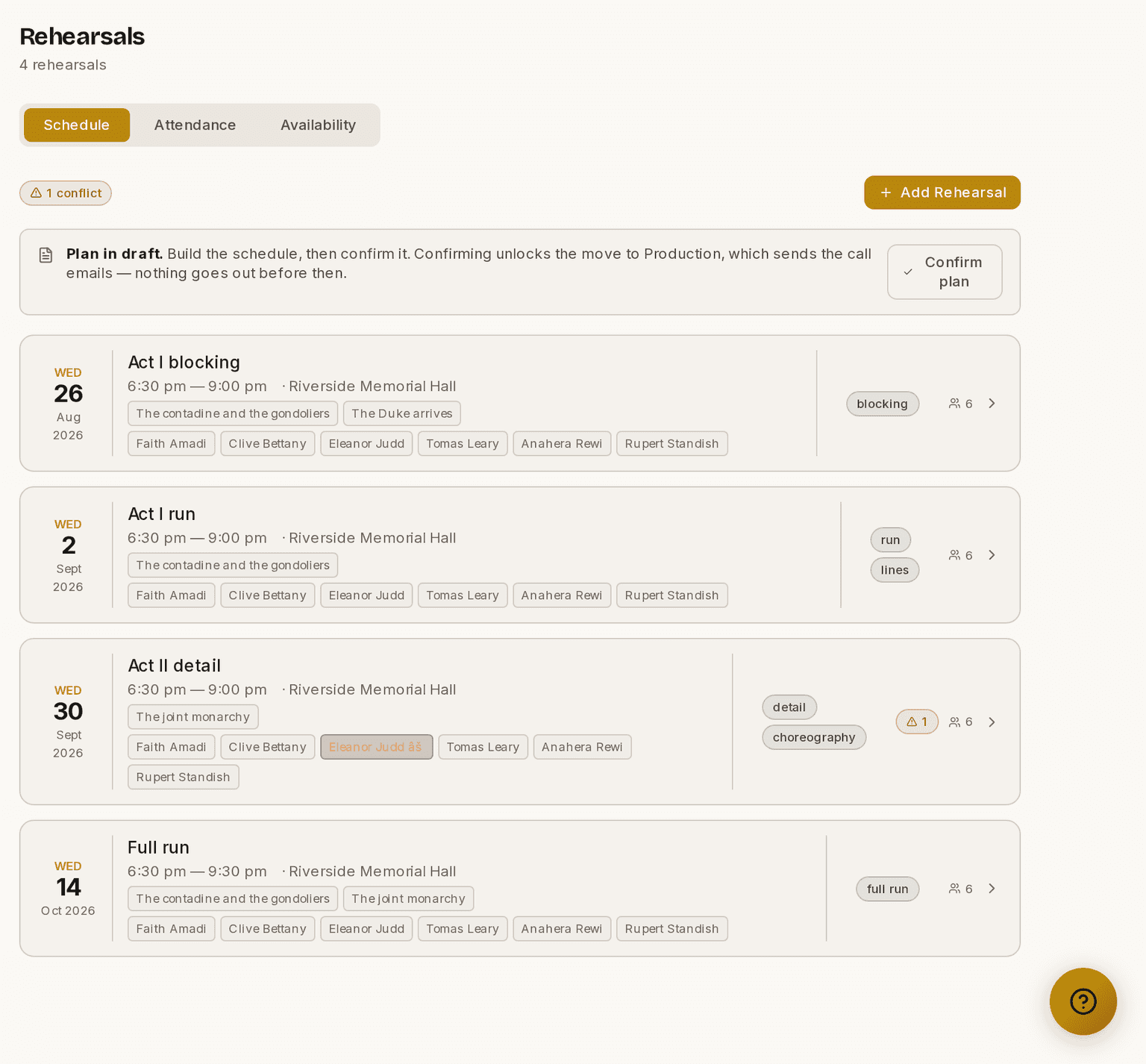
Screenshots show the light theme. The app looks the same in dark.
How to schedule a rehearsal
- Open Rehearsals ▸ Schedule.
- Click Add Rehearsal.

- Set the Date, the Start time and the End time. These are the only fields you must fill in.
- Add a Title, a Venue and Notes if they help. All three are optional.
- Pick one or more Session focus tags — Vocal, Blocking, Dance, Sitzprobe, Full Run and so on.
- Tick what's being rehearsed. Prompter calls the cast in those scenes for you.
- Tick anybody else you need under Also call.
- Click Create Rehearsal.
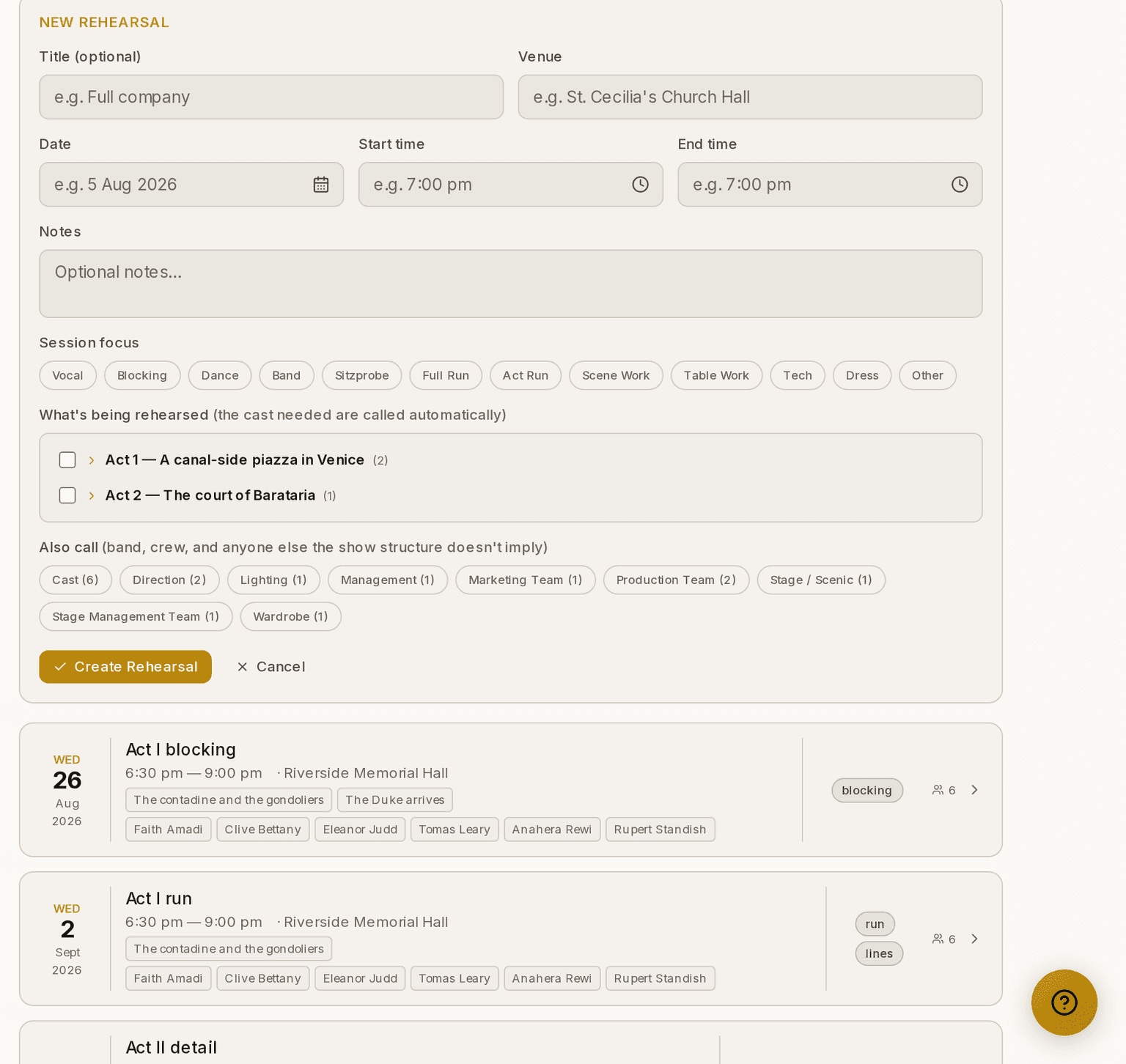
How the call sheet builds itself
This is the part worth knowing about. Tick what's being rehearsed — any mix of acts, scenes and individual Beats — and Prompter works out who is needed and calls them.
It follows the chain you have already built: the Beats you selected, then the characters in those Beats, then the person cast in each role. Rehearsing Act 1 Scene 3 calls exactly the people who appear in it, and nobody else. Pick different scenes later and anybody newly needed is added too.
- It only ever adds people, never removes them. If you have already told somebody they are called, editing the running order will not quietly drop them.
- If a required character is not cast yet, Prompter says so rather than leaving a silent gap. There is nobody to call for that role.
This is what the Act, Scene and Beat structure in Show is for. Attaching characters to Beats is what saves you writing out a call sheet by hand every week.
Calling the band, crew and everybody else
Cast is worked out for you. Departments are not — nothing in your show's structure says whether the band or the crew is needed on a given night, so you choose.
Tick them under Also call when you set the rehearsal up. The count beside each department tells you how many people that is. You can also use Add by department on the rehearsal itself at any time.
How to confirm the plan and send the calls
⚠ Calls do not go out rehearsal by rehearsal. You build the whole schedule first, then send it all at once, so nobody gets a stream of separate emails.
- Build out your schedule while the production is in Planning or Pre-Production. Nothing is emailed yet.
- Sort your casting, so the call sheets fill.
- Click Confirm plan, at the top of the Rehearsals page.
- Advance the phase to Production on the Timeline. This is what sends the calls.
Confirming does not send anything. It locks the plan in and unlocks the move to Production — a production cannot advance until its rehearsal plan is confirmed, so nobody lands in rehearsals with people who were never told.
When you advance the phase, everybody on the plan is emailed. Each person gets one email listing all their rehearsals, with the date, time, venue, focus and running order for each. Anybody with no email address is named back to you, so you can reach them another way. The box tells you how many people it will email before you confirm, including how many have no address.
Changes after the calls have gone out
Once you are in Production you will still tweak things. Prompter makes sure nobody added later is forgotten:
- The moment you add people to a rehearsal, a prompt offers to send their call.
- A banner on the Schedule shows "N people haven't been called yet", with Review and Send calls.
- If you close the tab with calls still pending, your browser warns you first.
Sending only ever emails the people who are out of date. Press it as often as you like; nobody already up to date is emailed again. To re-send to one person — a bounced address, say — use their row in the call sheet.
How to mark attendance
- Open Rehearsals ▸ Attendance.
- Choose a rehearsal from the Rehearsal list. It opens on the next one.
- Click Present, Late, Absent or Excused beside each name.
- Click Clear to undo a mark.
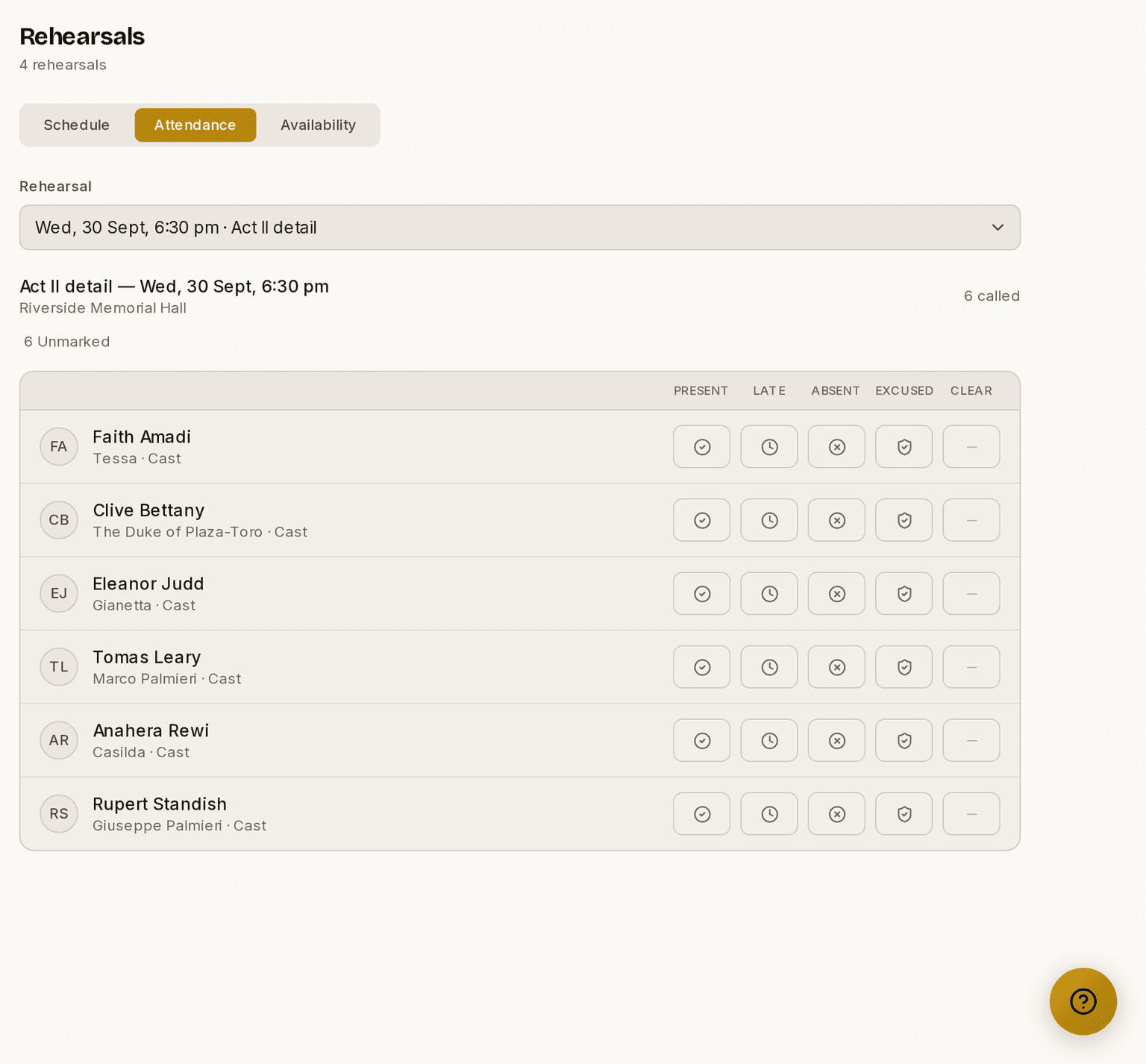
The header tells you how many people are called and how many are still unmarked, so you can see at a glance whether the register is finished.
How to check availability before you schedule
- Open Rehearsals ▸ Availability.
- Read Scheduling conflicts at the top. Each one is somebody who is called on a date they cannot make.
- Click a conflict to acknowledge it, which marks it as seen.
- Use Unavailability by person below to look somebody up, or to add a date on their behalf.
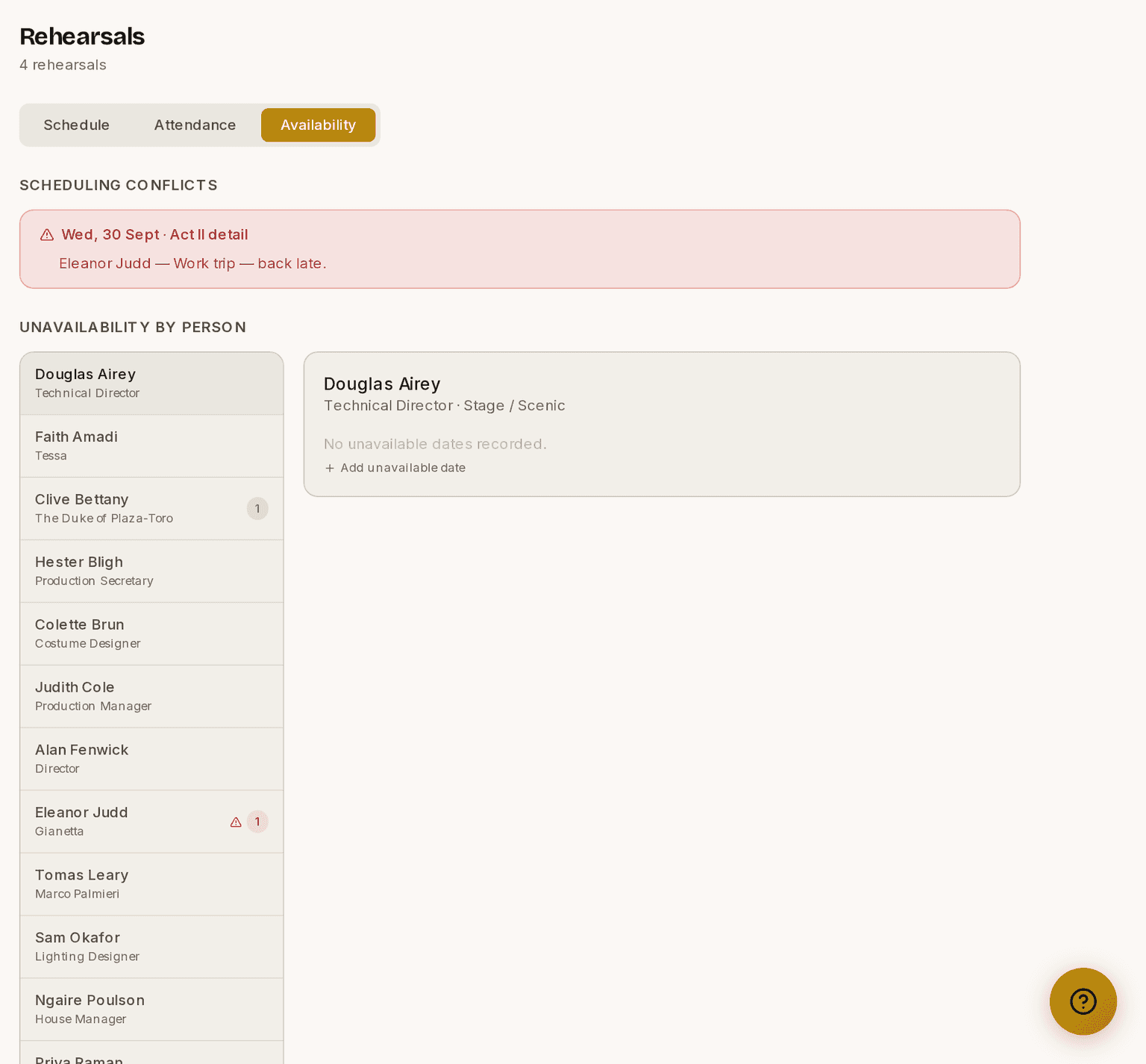
Your cast and crew submit their own unavailable dates from My Schedule, so most entries arrive without you doing anything.
When a rehearsal moves or is cancelled
Plans change, and the people you have already called need to know.
- Moved — changing a confirmed rehearsal's date, time or venue flags the people already called. They appear in the banner and in Review, marked as a move rather than an addition, and sending gives them an updated email worded as a change. Editing notes, focus or the running order does not count as a move and tells nobody.
- Cancelled — use Cancel rehearsal, not Delete. It keeps a record, marks the rehearsal cancelled, and immediately emails everybody who was called. There is no waiting, because turning up to a cancelled rehearsal is the worst outcome. The button tells you how many people it will notify before you confirm.
- No longer needed — removing somebody who was already called asks you first, then emails them that they are not needed for that rehearsal. Removing somebody who was never called happens quietly.
Not available yet: sending calls automatically a set number of days ahead, and a digest of your upcoming calls.
If a call sheet comes out empty
⚠ The call sheet fills from the cast attached to each Beat you are rehearsing. So if it is empty, the usual reason is that the Beats have no cast on them yet. Casting somebody through Auditions gives them their role, but it does not put them into the running order.
The Attendance tab says so when it happens, and points you at Show to attach cast to the Beats. You can also add people to a rehearsal by hand from there.
The Availability tab will say "Nobody is called yet" rather than showing a green "no scheduling conflicts". With an empty call sheet there was nothing to check, and that is not the same as everything being fine.
What your cast and crew see
Members and HODs get My Schedule in their sidebar, showing only the rehearsals they are called to, split into Upcoming and Past. Once the plan is live, a rehearsal appears there the moment somebody is added to its call sheet. They do not have to wait for the email. They also submit their own unavailability from here, which is what feeds the Availability tab.
⚠ While the plan is still a draft, they see none of it. They get "The rehearsal schedule isn't published yet — you'll be emailed your calls once it is." That is deliberate: a draft plan can still move or lose rehearsals without anybody being told, so showing it early would have your cast planning around dates you have not committed to.
You and your HODs do see the draft in My Schedule, marked Draft plan, so you can check your own calls while you build it.
All times are shown in your organisation's timezone, which you set in Organisation ▸ General.
These guides describe Prompter as it works today. Create a free account to try it, or see what it costs.