Account & organisation
Your profile & notifications
Manage your details, notification preferences, and install the app.
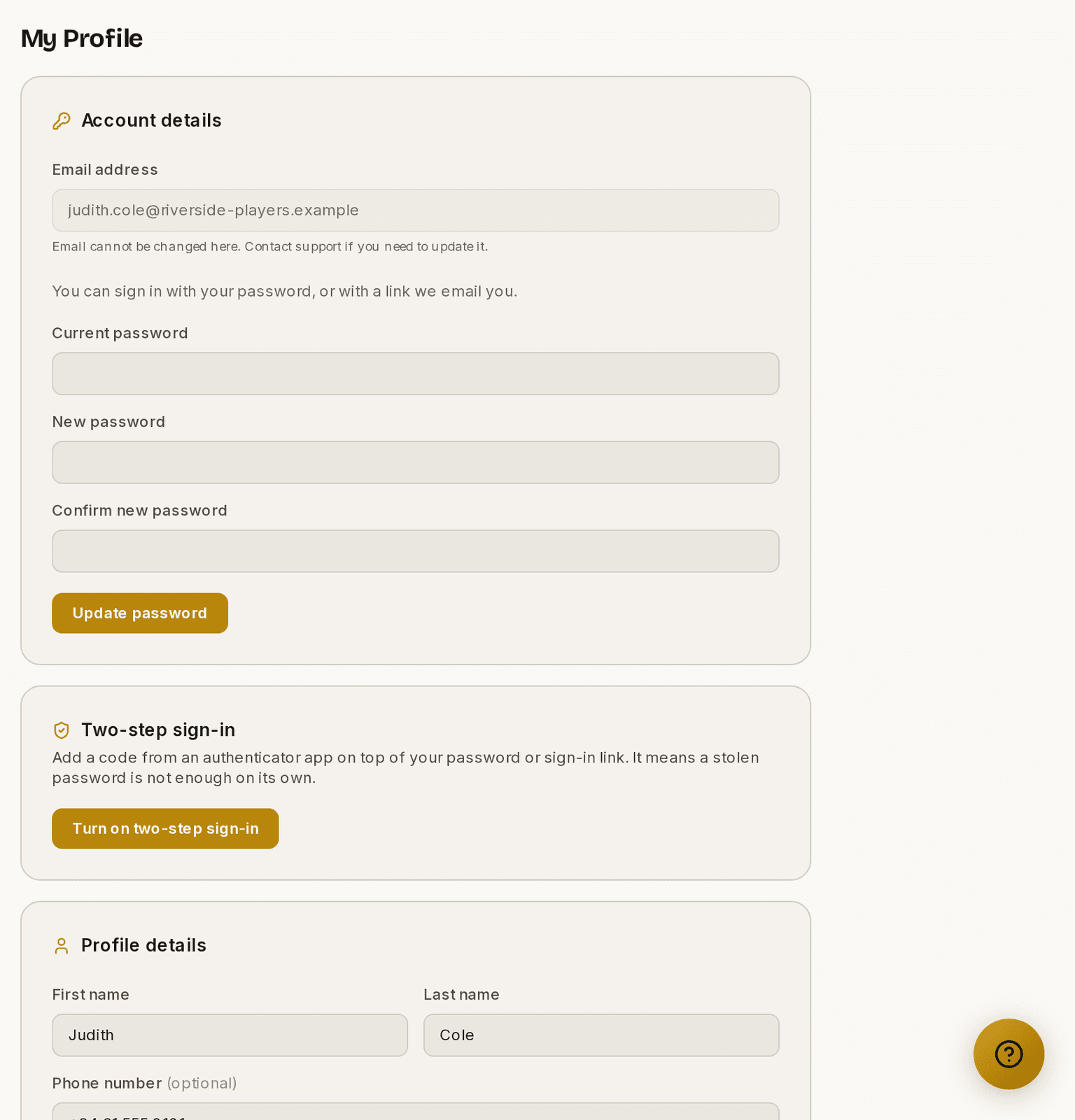
Your Profile is where you manage your own details and how Prompter reaches you. It belongs to you, not to any one organisation — if you work with more than one company, this is the same profile in all of them.
Open it from your name at the top of the menu on the left.
Screenshots show the light theme. The app looks the same in dark.
How to change what Prompter emails you
- Open Profile.
- Scroll to the notification settings.
- Turn each kind of message on or off.

Notifications
The bell in the app shows your notifications — things like urgent Noticeboard posts, tasks assigned to you, and product updates. An unread dot tells you there's something new.
If you're an owner or admin of your organisation, you'll also see a warning here if a Produce+ payment doesn't go through. It's the one notification that needs you to do something rather than just telling you something, so it looks different — red rather than gold — and it says what the bank actually reported, not just that the payment failed. See Your plan for what to do about it.
You can choose whether urgent announcements also reach you by email, so you decide how much of a nudge you want for the important stuff.
Install the app
Prompter can be installed to your device like an app — a home-screen icon that opens straight into Prompter, no browser bar. Look for Install the app in your Profile, which shows the steps for your particular device. On supported devices, the installed app's icon carries a badge mirroring your unread count.
Your details
Update your name and contact details from your Profile. If you're a sole Owner and want to leave, you'll be asked to transfer ownership or close the organisation first — see Organisation settings.
Choosing a password
Your password needs to be at least 8 characters, with a lowercase letter, a capital, a number and a symbol.
Prompter also checks it against a public list of passwords that have appeared in known data breaches, and refuses any that match — however long it is. That catches the passwords attackers try first, which are rarely the short ones.
A short phrase you will remember, with a number and a symbol in it, is both easier to type and harder to guess than a mangled word. The same rules apply whether you are signing up, accepting an invitation, or changing your password later.
Two-step sign-in
Two-step sign-in adds a code from an authenticator app on top of your password or your Google sign-in. A stolen password is then not enough on its own. Turn it on under Profile ▸ Two-step sign-in.
You scan a QR code with an authenticator app — Google Authenticator, Authy, 1Password and the rest all work the same way — then type the six-digit code it shows to confirm. From then on, Prompter asks for a code every time you sign in.
If your organisation requires it
An owner can require two-step sign-in of everyone with Owner or Admin access — the people who can reach billing, the team list, and your members' personal details.
Cast and crew are never asked for it. Your role inside a production has nothing to do with this.
If your organisation turns it on and you have not set it up, your next sign-in shows you the setup screen instead of the app. You are not locked out — the setup is on that screen, it takes about a minute, and you come straight back in.
Owners: set it up on your own account first. Prompter will not let you require it of others while you have not got it yourself, because that would lock you out of the page where you would switch it off again.
Your recovery codes
When you turn it on, Prompter gives you ten recovery codes and shows them once. Save them somewhere that is not your phone — printed, or in a password manager.
We store only a scrambled version of each code, so we cannot read them back or tell you what they were. If you lose them, open Profile ▸ Two-step sign-in and choose New recovery codes. That replaces the whole set, and the old ones stop working.
If you lose your phone
On the sign-in screen, choose I do not have my phone and enter one of your recovery codes.
A recovery code does not sign you in. It switches two-step sign-in off, so you can sign in the ordinary way and set it up again on your new phone. Each code works once.
If your code keeps being refused
Almost always this is the clock on your phone. Authenticator codes are worked out from the time, so a phone that has drifted by a minute produces codes Prompter will not accept. Turn on automatic date and time in your phone's settings, then try the code showing now.
Closing your account
Closing your account cannot be undone, so Prompter asks twice before it happens. Both checks are in the danger zone at the bottom of your Profile.
First you type your own email address. That one is there to catch an accident — a deliberate action is hard to do by mistake when you have to write the address out.
Then Prompter confirms it is really you:
- If you have a password, you enter it.
- If you sign in by email link, there is no password to enter, so Prompter sends one more link instead. Open it, and you come straight back to the danger zone to finish. This stops someone who finds your laptop still signed in from deleting the account, because they would also need your inbox.
Deleting a whole organisation asks in the same two ways. That one gives you a 30-day recovery window afterwards; closing your own account does not.
When a sign-in link doesn't work
Sign-in links are deliberately fussy: each one works once, expires after a short while, and has to be opened in the same browser that asked for it. That last one catches people out most often — request the link on your laptop, open it on your phone, and it won't work.
If a link fails, the sign-in page tells you which of those happened. Whatever the reason, the fix is the same: ask for a new link and open it in the browser you're sitting at. A couple of ordinary things can quietly use a link up before you get to it — double-clicking the button in your email, or a mail app that opens links in the background to preview them — so if a link seems dead on arrival, just request another.
If you were already signed in as someone else, Prompter stops and asks rather than carrying on. You'll see a page naming the account the browser is signed in as, and you choose: keep going as that account, or sign out and sign in as the other one. This matters most on a shared computer, or when you're setting up a second account — it's how you avoid starting work in the wrong organisation without noticing.
One thing worth knowing if you were confirming a new account's email address: confirming can succeed even when the sign-in part fails. So your address may well be verified already — sign out, then sign in as that account to check, rather than signing up again.
These guides describe Prompter as it works today. Create a free account to try it, or see what it costs.