Account & organisation
Organisation settings
Timezone, logo, your plan, modules, and managing your team and data.
Your organisation area sits above any single production. It is where org-wide settings live and where you manage billing, your team and your data.
You will find it under Organisation in the menu on the left.
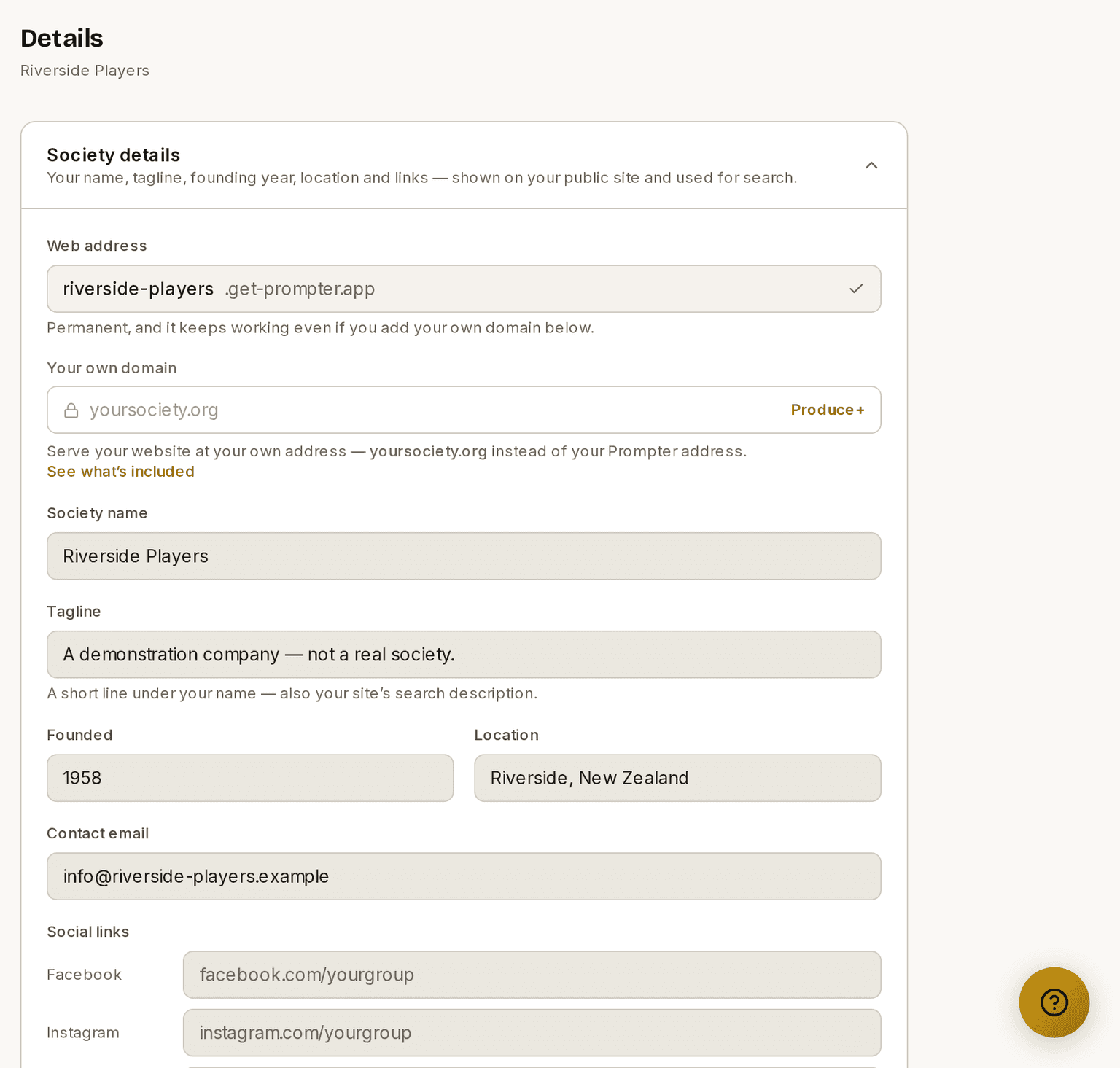
Screenshots show the light theme. The app looks the same in dark.
How to change your timezone
- Open Organisation ▸ General.
- Choose your Timezone.
- The change saves as you make it.
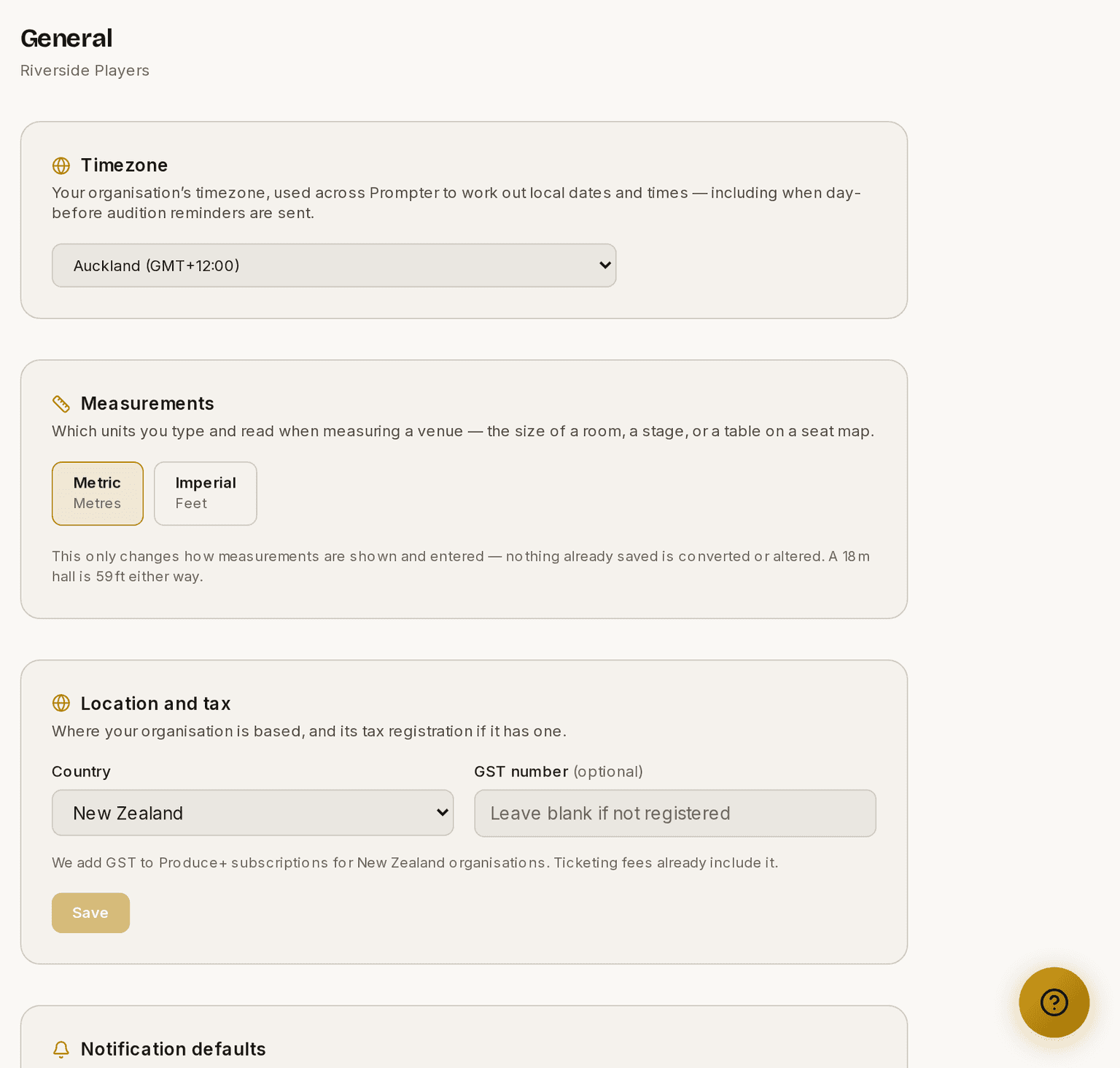
⚠ Set this before you schedule anything. Prompter uses it everywhere it matters — rehearsal and meeting times, audition times and the day-before reminders, and ticket confirmations all render in your zone. Set this once and the whole platform follows it.
Where you are, and tax
Organisation ▸ Settings ▸ General has a Location and tax card. Tell Prompter which country your organisation is based in, and — if you're registered — your own tax number. Depending on where you are the field is labelled GST number, ABN or VAT number.
What your tax number is for
If you're registered, your number is printed on your ticket buyers' receipts and confirmation emails — as the seller's registration, because you are the one selling the tickets. A buyer who needs to claim the tax back can only do so if your number is on the document. It also appears on the monthly invoice Prompter sends you for its Box Office fee.
So fill it in if you're registered, even though the field says optional. Leave it blank if you're not — a number you don't hold is worse than none.
Prompter never works out what tax you owe on your ticket income. We don't know your rate, your registration status, or your exemptions, so we print what was charged and make no claim about the tax inside it. That part is between you and your accountant.
What Prompter charges you
This is a separate matter, and your country is what decides it:
- The Box Office ticketing fee includes GST. The percentage you see is the percentage taken, wherever in the world you are. There's nothing added on top.
- Produce+ subscription prices exclude GST. If your organisation is in New Zealand, 15% is added and you'll see it before you confirm. Outside New Zealand no New Zealand GST applies.
You enter your tax number again at the checkout if you want it on your Produce+ invoice — Stripe collects it there, separately from the one here.
Countries we can't offer Prompter in
A small number of countries can't be selected — Russia, Belarus, North Korea, Iran, Syria and Cuba. Choosing one shows a note explaining why and won't save.
This is about where Prompter can operate and be paid, not about you. International sanctions and the restrictions our payment provider works under mean we can't provide the service or take payment in those places. There's nothing you can do at your end to change it, and no separate process to apply through — so if that's where your society is based, we're sorry, and we'd rather say so plainly than let you set things up and hit a wall later.
Tax on your own ticket sales is yours
Worth being clear about, because it's easy to assume otherwise. You sell the ticket to your audience and the money settles to your account, so any GST or VAT on that sale is your organisation's to account for. Prompter records the price you set and doesn't work out, add, or report tax on it — and can't advise you on it. If you're not sure what your company owes, that's a question for your accountant.
Your logo
Upload your logo under Presence ▸ Branding. It sits there because that's where most people go looking for it, but it's a single shared asset rather than a website-only one — you upload it once, and it's the logo Prompter uses wherever your branding appears. Which pages that covers depends on your plan; see below. Two tools help it look right:
- Trim edges removes transparent padding around a logo so it fills its space instead of reading small.
- A size slider sets how large it displays.
Where your logo appears
Your own website shows your own logo on every plan. Your site should look like your company's, not ours. What the free plan carries instead is a small line in the footer of each page — "This website is powered by Prompter" — which Produce+ replaces with a quieter one-line credit.
Everywhere Prompter acts on your behalf, the free plan shows the Prompter mark: your ticket buy page, your audition pages, and the confirmation and reminder emails we send your buyers and applicants. On Produce+ those carry your logo instead.
So the branding difference between the plans is: your brand on every page a buyer or applicant sees, and no banner on your website.
Your banner image
Your banner image is the wide photograph across the top of your public website — your venue, a set, or a curtain call. Upload it under Presence ▸ Branding, beside your logo.
Use a landscape shape, around 1600×900. JPEG, PNG, WebP or AVIF, up to 5 MB.
It saves as soon as you upload it, the way your logo does. You don't have to publish your website first.
If you upload one and it doesn't appear
Two things can hide it, and both are easy to fix.
- Your template. Three of the four templates show your banner. Playbill doesn't — it shows a typographic programme cover instead, which is the look it exists for. To use a photograph with Playbill, open Presence ▸ Settings ▸ Content, open the Hero section, and tick Show this image behind the cover. The framed title block stays on top of the photograph.
- The Hero section is switched off. In the same Content tab, check the Hero section is turned on.
Venues
A venue is a hall you play. Add it once under Box Office ▸ Venues and it's there to pick on every show, event and performance — no retyping, and if you rename it, all of them update at once. It lives under Box Office because that's where its seating plan matters most, but a venue isn't only for ticketed shows — you can use one whether or not you ever sell a ticket through Prompter.
You don't have to set them up in advance. Any venue field offers + New venue…, so you can add a hall without leaving the form you're filling in. Type a name you already have and Prompter reuses that venue rather than making a second copy of it.
Anyone on your admin team can add and rename a venue. Deleting one is limited to an Owner or Admin, and it only detaches the venue from the shows and events that used it — nothing else is lost.
A venue has two text fields and they go opposite ways, so it's worth knowing which is which. The address is public — it prints on tickets, confirmation emails and your Buy Tickets page, which is exactly what somebody wants when they're driving to a hall they've never been to. Notes are for your team only, and never appear on your public website or on a ticket: load-in through the side door, where the key lives, which parking is free after six.
Layouts — one hall, several arrangements
A venue is the building. A layout is one arrangement of the room inside it.
Most halls get used more than one way. The same room might be Full House for the musical, Cabaret with round tables for the fundraiser, and Stalls Only when you don't expect to fill the circle. Each of those is a layout, and each has its own seat map.
Open a venue and you see its layouts as cards, each with a small plan of the room, how many seats it holds, and which shows are using it. + Add a layout makes a new one. You can give a layout a seating type — "Rows, three levels", "Cabaret, 12 rounds" — and a note for anything the next person needs to know. Both are free text. Nothing checks them; they're there so the layout says what it is at a glance.
Every venue starts with one layout, so a hall that only ever gets used one way needs no thought at all.
When a show starts selling, it gets its own copy of the layout. That copy belongs to the show. Editing it changes that show and nothing else — the layout in your library is untouched, and so is every other production using it. When the show is archived, its copy goes with it, so your venue's list stays as short as the number of ways you actually use the room.
This is what lets two shows at the same hall sell it differently at the same time.
Deleting a layout removes that arrangement and its seat map. A venue always keeps at least one.
Seat maps
Each layout holds a seat map — a scale plan of that room, drawn as it really is.
Start with the room. Tell Prompter what kind of space it is:
- Hall — a flat floor with the stage at one end. Rows and cabaret tables.
- Auditorium — raked seating facing a stage at one end. Rows only; you can't stand a table on a rake.
- Black box / custom — a flat floor with the stage wherever you like: in the round, thrust, or with the audience wrapped around.
Then give the room's real width and length in metres (an auditorium just needs its stage width — everything scales from that). Leave anything you haven't measured blank. Prompter uses these figures to tell you whether a layout actually fits, so a guessed number would cheerfully tell you yes when the answer is no.
Then add a row or a table, and click the plan to put it where it really is. Nothing gets positioned for you, because only you know where the piano lives.
A row needs a letter and a number of seats. You can give it a curve, and as many aisles as the room has — you say which seat each gap comes after, and the numbering carries straight on across it, because it's still one row. In a black box, a row can curve the whole way round to ring a central stage; put an aisle after its last seat and that gap becomes the entrance.
A table can be round or rectangular. On a rectangle you choose whether each end is seated, and an end adds a seat rather than shuffling one along — so three down each side is six seats, seven with one end, eight with both.
If you know how big your tables actually are, say so: a round one takes a width across, a rectangular one a length and a width. Leave them blank and Prompter works the size out from the chairs instead, which is fine for most rooms. If you enter something too small for the number of seats, the table is drawn at the smallest size that fits and tells you it has done so — rather than quietly stacking chairs on top of each other, or quietly ignoring what you typed. Clear the box to go back to fitting the seats.
Once things are on the plan you can drag them about. They snap to the middle of the room and line up with each other, with a guide line showing you why; hold Alt if you want to place something freely. Nothing is fixed afterwards — you can rename a row, change its seats, curve or aisles, or turn it to an exact angle.
Right-click a row or table on the plan and you'll get Rename, Edit, Duplicate and Delete right where your cursor is. Renaming happens there and then, without opening the full editor. Everything in that menu is in the list below the plan as well, so you never have to reach for the mouse if you'd rather not — and the list is what works on a tablet, where there's no right-click to give.
If your hall has a dozen identical cabaret rounds, Duplicate saves filling in the same form a dozen times: choose it, then click the floor to put the copy where it goes. The copy comes across as the same shape, size, seat count and angle — but with plain seats numbered from 1. That's deliberate: a wheelchair space or an out-of-use seat usually describes a place in the room — the pillar, the sound desk, the wobbly chair by the door — and table four doesn't have table three's pillar next to it. If the one you copied had any seats marked, the form says so, so nothing disappears without you being told.
Seats can be marked as wheelchair spaces, companion seats, or permanently out of use — a sound desk position, a chair that's broken. Select a run of them by clicking the first and shift-clicking the last, and set them all at once. Every seat shows its number on the plan.
The list underneath the plan is yours to arrange — drag a row or table by the handle on its left to move it, or press Sort A–Z to put them in name order in one go. Whatever order you leave it in is the order you'll see from then on.
You don't decide here how the seats are sold — that belongs to the performance, under How seats are sold in Box Office. A seat map describes the room; each show decides whether to sell it by the seat, by the table, or not by seat at all. The same room can be sold differently for a gala night and a matinee.
Once a room is set up you mostly want to look at the plan, not the form above it. Room setup and the list can each be folded away with Hide, and they stay as you left them next time you come back. Folded, each still tells you what it's holding — the room says its type and size, the list says how many rows and tables are in there — so putting something away never means losing sight of it.
If you've told Prompter how big the room is, it will tell you when a layout won't fit — naming which wall it overshoots and by how far, so you know whether to move a table or correct the measurement. You'll only hear about it when something is actually wrong, and only once the room has been measured; an unmeasured room stays quiet rather than guessing.
Measurements are in metres by default. If your company thinks in feet, switch it in Organisation ▸ Settings ▸ General under Measurements — that changes only how sizes are shown and typed, and nothing you've already saved is converted.
More than one level
Most halls are one flat floor, and if yours is, you can skip this — you'll never see a mention of it.
A theatre with a circle or a balcony is different: those are separate floors, and you lay each one out on its own. Press + Add a section, give it a name your audience would recognise — Dress Circle, Grand Circle, Balcony — and say which level it's on. The level matters more than it looks. It's how a buyer who has never been to your venue knows the Grand Circle is above them rather than just further back.
Once there's more than one floor, tabs appear above the plan. Click a floor and you're working inside it, drawn as a room of its own at full size — you're never trying to lay out the stalls on a plan that has shrunk to make space for a balcony you're not touching.
The list underneath still shows everything, grouped by floor. To move a row or table upstairs, drag it onto that floor's heading — it keeps its position, so a table three metres in from the left and four back ends up three in and four back on its new floor. You can also change it with the Section box in the row or table's own editor.
You can give a floor its own width and length if you know them, or leave them blank and let the plan scale to whatever you put on it — the same as with the room itself. Blank is perfectly normal.
Row letters only have to be different within a floor. A real theatre has a Row A in the stalls and another Row A in the circle, and so can yours.
To delete a floor it has to be empty — move its rows and tables somewhere else first. Deleting a floor never deletes seats, and a layout always keeps at least one floor.
When someone buys, they see your floors stacked with the stage at the bottom, each one named, and a line telling them plainly that the upper levels are above them in the building rather than behind.
A seat map is for selling seats, not for safety. Gangway widths, exit routes and how many people your venue may legally hold are set by your local fire and licensing rules — check those with your venue or council. Prompter doesn't assess or approve a layout.
A seat map is what makes reserved seating possible, where a buyer picks their own seat instead of just buying a ticket. Once a layout has a map, any performance selling from it can be switched to reserved seating in Box Office ▸ Performances — and your buyers will see this room, drawn the way you laid it out, in your own website colours.
Building a map doesn't change anything on its own. A performance keeps selling general admission until someone switches it over, so you can lay your hall out at your leisure and turn it on when you're ready.
Seat maps are on every plan
Reserved seating used to need Produce+. It doesn't any more — building a seat map and selling a performance seat by seat are on the free plan too.
Adding, renaming and deleting venues was always free, and now so is everything you do inside one: set the room up, place your rows and tables, and switch a performance to reserved seating whenever you like.
Owners, Admins and Presence Managers can all build a seat map. Laying out a hall is deciding how a room is sold, which is a different job from receiving the money for it.
Produce+ doesn't change your Box Office fee either — every plan pays 2.5%. What it adds is unlimited concurrent productions, your own domain and Bard. Your ticketing costs the same whichever plan you are on, so upgrade for those three things or don't upgrade at all.
A map locks once that layout is selling
There is a second reason a seat map can be read-only, and it has nothing to do with your plan.
Once a performance has sold a seat from a layout — or is on sale right now — that layout's map is locked. You'll see the plan, but you can't change it. The panel above it says how many seats are sold and why.
The lock is per layout, not per venue. A show selling from your Cabaret layout does not lock Full House. That's the point of keeping them separate: the hall carries on being editable for everything the show isn't selling.
The reason is that seat numbers are printed on tickets. If you renamed Row A while forty people were holding tickets for it, their PDF, their confirmation email and the usher's scanner would all quietly start saying something different, and nobody would be told. So Prompter stops the edit rather than letting it rewrite what people have already paid for.
If nothing is sold yet and the map is locked only because a performance is on sale, take that performance off sale and the map unlocks.
If seats are already sold, there's no way to unlock it from inside Prompter — and taking the show off sale won't help, because that doesn't un-sell anything. If you've genuinely mislabelled a row and people are holding tickets, get in touch at support@get-prompter.app rather than working around it.
General admission performances never lock a map, because a general admission ticket doesn't name a seat.
Two things are deliberately never taken away. You can always switch a performance back to general admission, and checking tickets in at the door is never affected by your plan or your payments.
Your plan
Prompter's base product comes in two tiers: Produce (free) and Produce+ (paid). Manage your plan and billing from Organisation ▸ Billing, its own tab in the sidebar. Only an owner can open it. Your storage breakdown is not there — that lives on the Organisation dashboard, because it tells you what to tidy up rather than what to pay. Produce+ adds the Bard AI assistant, reserved seating (buyers pick their own seat), your own branding on the pages and emails your buyers and applicants see, no "powered by Prompter" banner on your website, more active productions, and more storage.
Some companies hold Produce+ as a grant from us rather than a paid subscription — a founding partner, or a company we've comped. If that's you, the Billing tab says so and there's no Manage billing button, because there's no subscription behind it and nothing is being charged. Nothing is wrong and there's no invoice to chase.
Monthly or annual, and switching between them
Produce+ is billed monthly or annually, and annual saves 25% — it is priced at nine months rather than twelve. You choose when you first subscribe, and you can change your mind afterwards without cancelling: open Manage billing and pick the other one.
The two directions behave differently, on purpose.
Moving to annual takes effect straight away. You're credited for the part of the month you haven't used, that credit comes off the year's price, and your renewal date moves to today.
Moving back to monthly waits until your year is up. Nothing is charged or refunded at the time, you keep Produce+ for the year you've already paid for, and monthly billing starts when it ends. So there's no penalty for trying annual, and no awkward part-refund to chase.
What you'll be charged in
Prices are shown and charged in your company's own currency where we have one — New Zealand dollars, Australian dollars, pounds, Canadian dollars, or US dollars — set from your country when the organisation was created. Anywhere else is billed in US dollars, and the Billing tab says so before you subscribe.
Subscription prices exclude tax. A New Zealand company has 15% GST added at checkout and sees it before confirming; companies outside New Zealand pay no New Zealand GST.
How you can pay
Produce+ is paid at checkout by card — including Apple Pay, Google Pay and Link, which are cards underneath — and, where it's available to you, by direct debit from your organisation's bank account. Checkout shows you what you can use.
We don't offer buy-now-pay-later, and that's a deliberate choice rather than an oversight. Those services assess the person who clicks, not the organisation — so a volunteer treasurer paying for the society would be taking on the repayment themselves. That isn't a position we want to put anyone in.
We're working on ways to pay that don't need a card. Plenty of societies have a bank account and no company card, and we know that a volunteer treasurer fronting the society's subscription on a personal card is a bad answer. Direct debit is being introduced — what you're offered at checkout depends on your country and the currency you're billed in, so the surest way to know is to open the upgrade page and look. Bank transfer and pay-by-invoice aren't available. If any of this is blocking you, tell us — knowing how many companies it affects is what decides how soon we get to it.
When a payment doesn't go through
If we can't collect a Produce+ payment, the owners and admins of your organisation get a notification in the bell — red rather than the usual gold, because it needs an answer. It tells you what the bank actually said, not just that something failed, and where we can it links straight to the invoice so you can pay it without contacting us.
We also email you. The person who sorts out the bill is often the person least likely to be in Prompter on a given day, so the same message goes to the email address on your account. It carries the same reason and the same link to pay. If your bank tells us a Direct Debit Authority has been cancelled, we email you about that too — and that arrives roughly a month before any payment fails, which is the easiest possible moment to put it right.
The reason matters, because the reasons need different things from you:
- "The Direct Debit Authority may have been cancelled" — the authority itself needs setting up again. Retrying won't help until it is.
- "There were not enough funds" — nothing to do. We try again, and it goes through once the account is topped up.
- "The bank account has been closed" or "the card has expired" — add different details from Manage billing.
Nothing switches off the moment a payment fails. We retry over the following days, and your Produce+ features stay on the whole time. They only drop back to the free plan once those retries are exhausted — so a notification is a prompt to sort something out, not an emergency.
How long you have depends on how you pay, and the difference is worth knowing:
- Card — retried up to 8 times over 2 weeks.
- Direct debit — retried once, within 5 days. That is the most a direct debit allows, so the window really is shorter.
Either way, if the retries run out the subscription ends and your organisation returns to the free plan. Nothing is deleted — your productions, people and files are all still there, and the free plan's limits simply apply again.
One thing to know if you pay by direct debit: a debit is accepted straight away at checkout but can take up to two working days to actually clear. So a failure notification may arrive a couple of days after a payment you'd already assumed had gone through. That's normal for direct debit and not a sign anything is wrong with your account.
Storage
Produce gives you 1 GB; Produce+ gives you 5 GB. You'll find the full breakdown in the Storage section of your Organisation dashboard, with a bar showing where it's all going.
Three things use up your allowance:
- Active productions — scripts, headshots, and anything else your team uploads to a show that's still running.
- Audition uploads — the CVs and headshots applicants send in through your public audition form.
- Your public website — your logo, and the images on your Presence pages and events.
Archived productions don't count. When a show is finished and you close and archive it from the Timeline, its files come out of your allowance and stay fully readable and downloadable. Nothing is deleted.
That's why archiving a finished show is the first thing to try if you're running out of room. It costs you nothing, it doesn't throw anything away, and it works whichever plan you're on — including Produce+, where there's no bigger plan to move up to. Upgrading is the other option if you're on the free tier and your current shows genuinely need the space.
Modules
Your public Website (Presence) and Box Office are switchable modules — turn each on when you're ready. Switching one off keeps your data; it just takes the public surface offline.
Both switches publish something the moment you press them, so Prompter asks first and names what goes public.
Turning Box Office on can start ticket sales the same second. A show that is already set up to sell goes on sale as soon as the module is on — see Box Office for what makes a show ready.
Turning Website on publishes your public site at your own address, along with every show, event and news post you have already marked public. It does not put any tickets on sale — that is the Box Office switch.
Either one stays a single click when there is nothing to name.
How to manage your admin team
- Open Organisation ▸ Team.
- Invite somebody by email, or change the role of somebody already there.
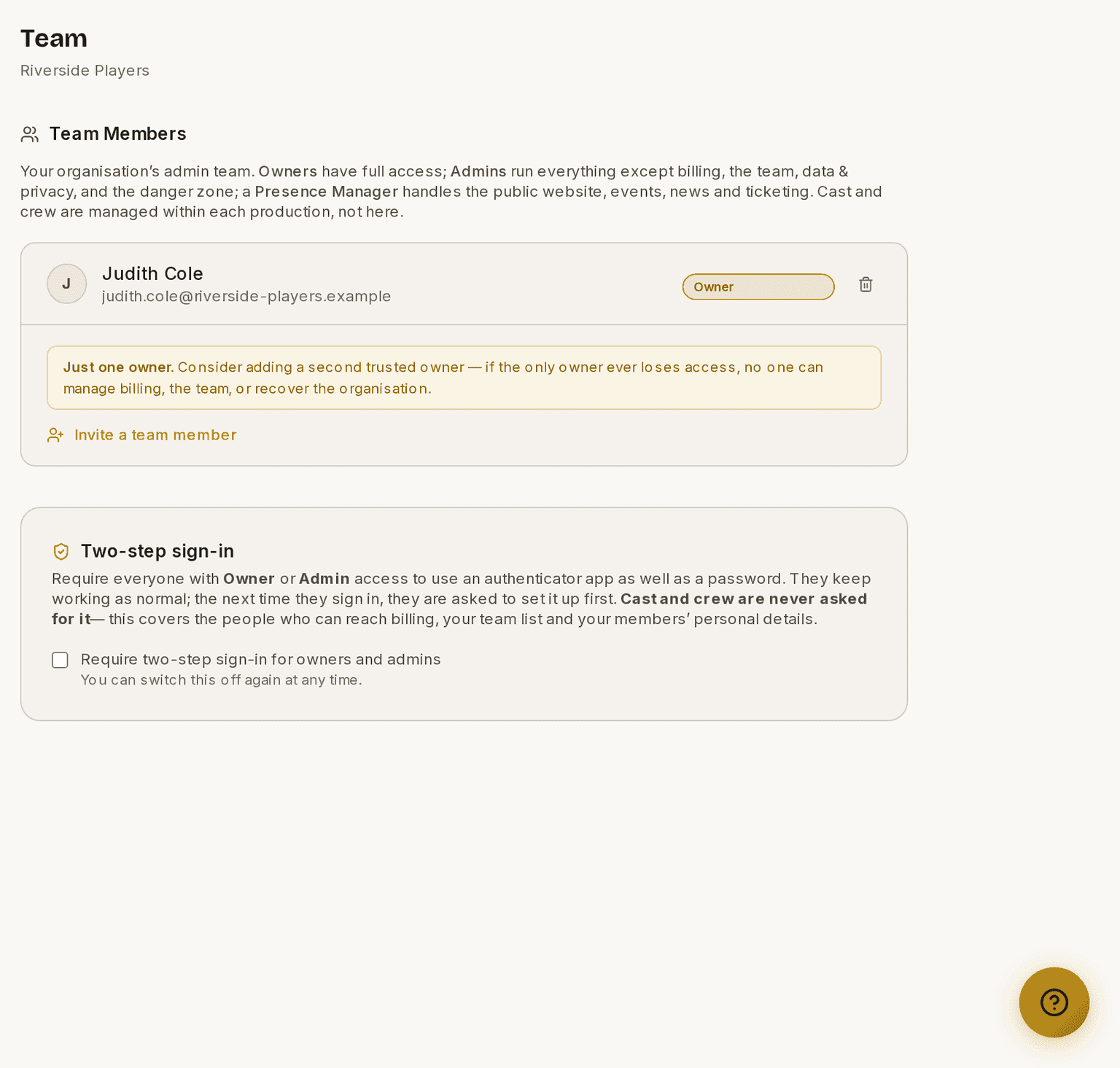
⚠ The admin team is not the same as the people on a production. Somebody on the Team page holds an organisation-wide seat. Somebody on a production's People page holds a role in that show. Adding one does not add the other.
Your admin team
The Organisation area is for your admin team — the Owners, Admins and Presence Managers who run the org. Cast and crew never reach it; they have production roles only. Owners manage the team (and its roles) in Team Management — see Roles & access for what each tier can do. Keep at least two Owners so you're never locked out if one loses access.
How to export everything your organisation holds
- Open Organisation ▸ Privacy & Data.
- Click Export organisation data.
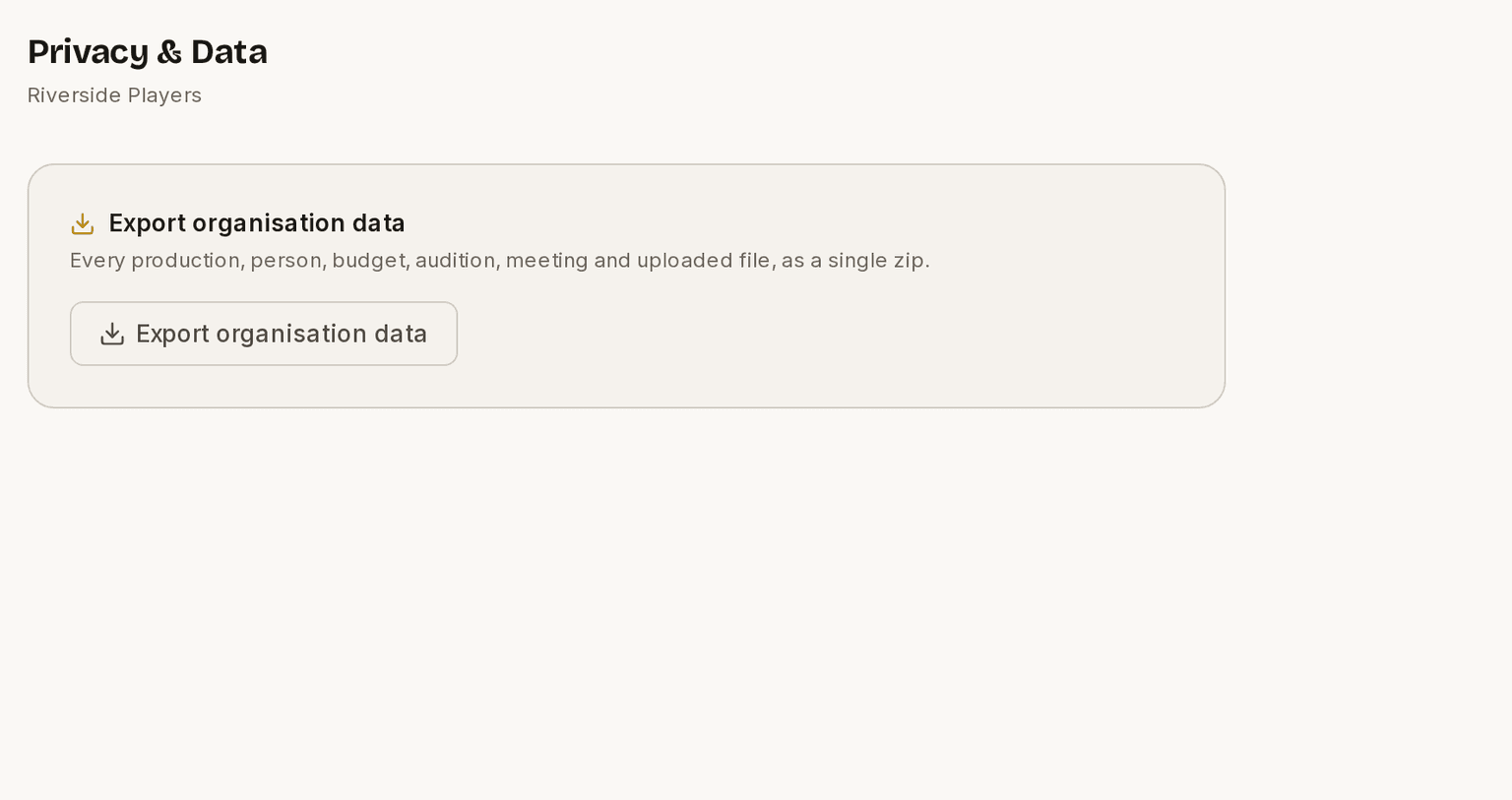
You can do this at any time, on any plan, without asking us.
How to delete an organisation
⚠ This is permanent, and it takes everything with it — every production, every person and all your data. Export first if you want a copy.
- Open Organisation ▸ Danger Zone.
- Click Delete organisation.
- Confirm.
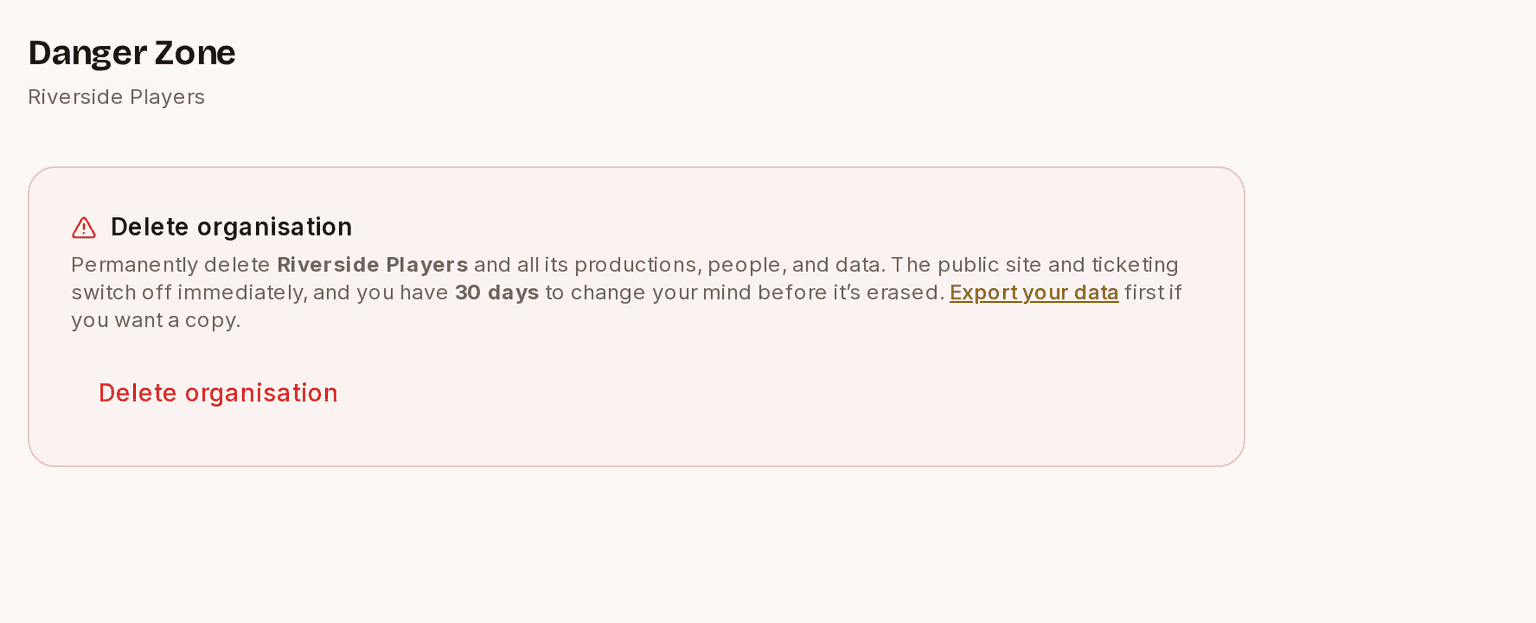
The public site and ticketing switch off immediately. You then have 30 days to change your mind before it is erased.
Data and closing
You can export your data at any time, and — if you ever need to — close your account or delete the organisation. Deleting an organisation opens a 30-day recovery window before anything is permanently removed, so an accidental deletion can be undone.
During that window the organisation is frozen: your public website and ticket sales switch off straight away, and everyone is locked out until it's either restored or erased. If you change your mind and cancel, your data comes straight back — but the public website and ticket sales stay switched off. That's deliberate rather than a fault: putting a site back in front of the public should be something you choose, not something that happens on its way past. Turn them back on under Presence ▸ Settings and Box Office ▸ Payments & Payouts whenever you're ready.
These guides describe Prompter as it works today. Create a free account to try it, or see what it costs.