Public site & ticketing
Box Office (ticketing)
Sell tickets, issue comps, scan people in at the door, refund, and let your audience round up.
Box Office is Prompter's ticketing — sell tickets to your performances, check people in at the door, and keep the money side straight, all connected to the show you're already running.
You will find Box Office under Box Office in the menu on the left, both for your organisation and inside each production.
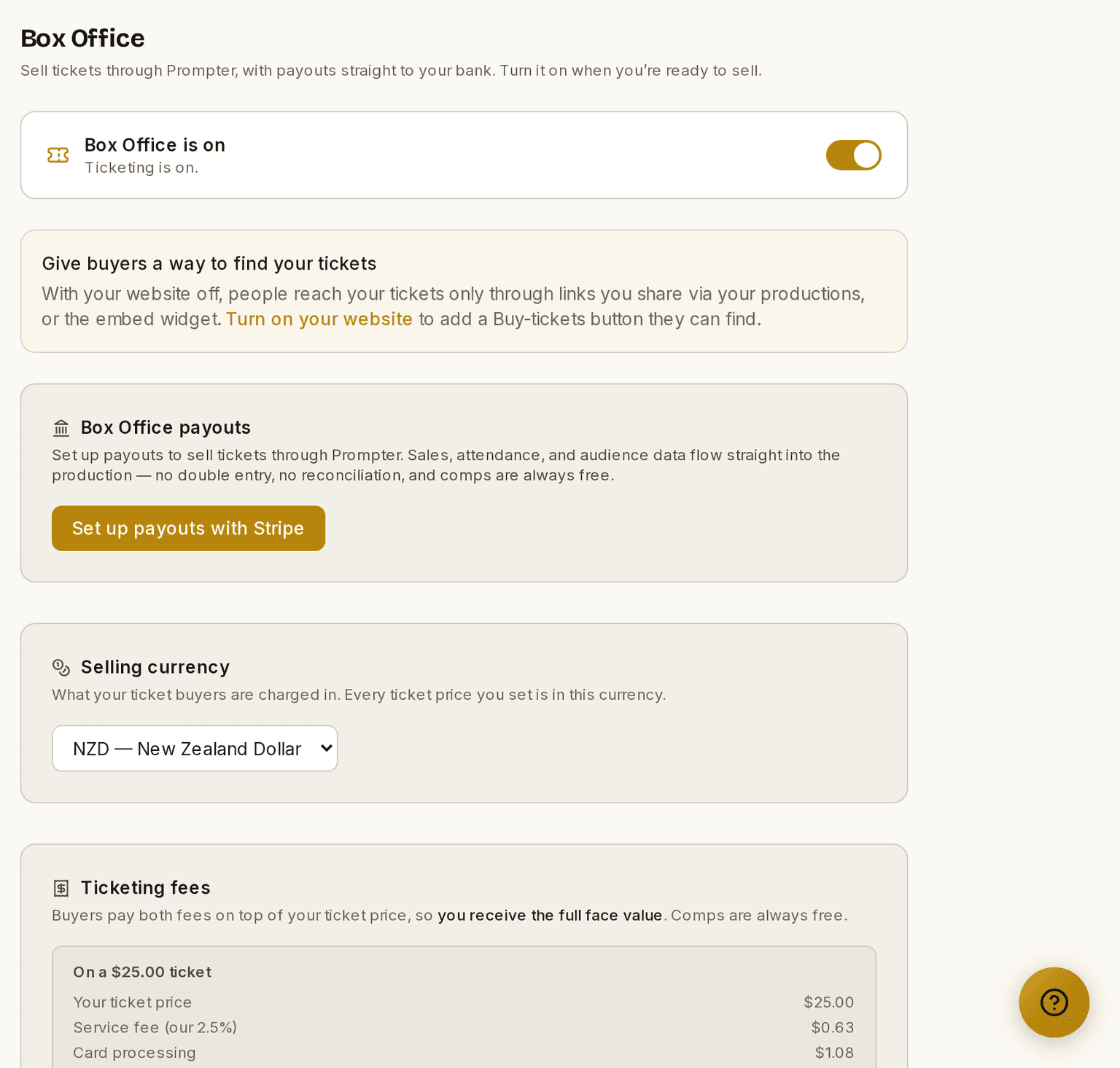
Screenshots show the light theme. The app looks the same in dark.
Switching it on
Box Office is an opt-in module, and taking real payments needs your organisation connected to Stripe (this is how payouts reach your bank). Until both are set up, ticket sales stay switched off.
Turning it on can start selling straight away
The Box Office switch is the only thing holding a ready show off its buy page. If a show is already set up to sell — public, tickets switched on, in the Production phase, with a date still to come, a ticket type, and payouts connected — it goes on sale the moment you turn Box Office on, and people can pay immediately.
Prompter tells you before that happens and names the show, so you can turn tickets off on it first if you're not ready to sell. If nothing is waiting to sell, turning Box Office on is a single click.
A free event is named too, and Prompter says people can book rather than pay. Free event tickets don't need payouts set up, so those seats really do go the moment the module is on.
Switching Box Office off is the safe direction. It pauses every live Buy button and deletes nothing.
If Prompter says Stripe is holding your money
Stripe asks two separate questions about your account: can you take payments, and will it pay you out. Those can be in different states — usually because Stripe wants identity documents or bank details before it releases your first payout.
If that happens, the Box Office payouts panel tells you. Three things are worth knowing:
- Nothing is lost. Your takings are sitting in your Stripe balance and come through as soon as verification finishes.
- You can keep selling. We don't switch ticket sales off for this — a hold is a delay, and stopping your sales over it would cost you a season you could have sold.
- The fix is in Stripe, not here. Open Manage payouts on Stripe and answer what it's asking for. We can't verify you on Stripe's behalf, so getting in touch with us first will only slow it down.
How to put a show on sale
- Open the production's Box Office.
- Work through Getting this show on sale. It lists every outstanding step and links to each.
- When every step is done, turn Tickets on sale on.
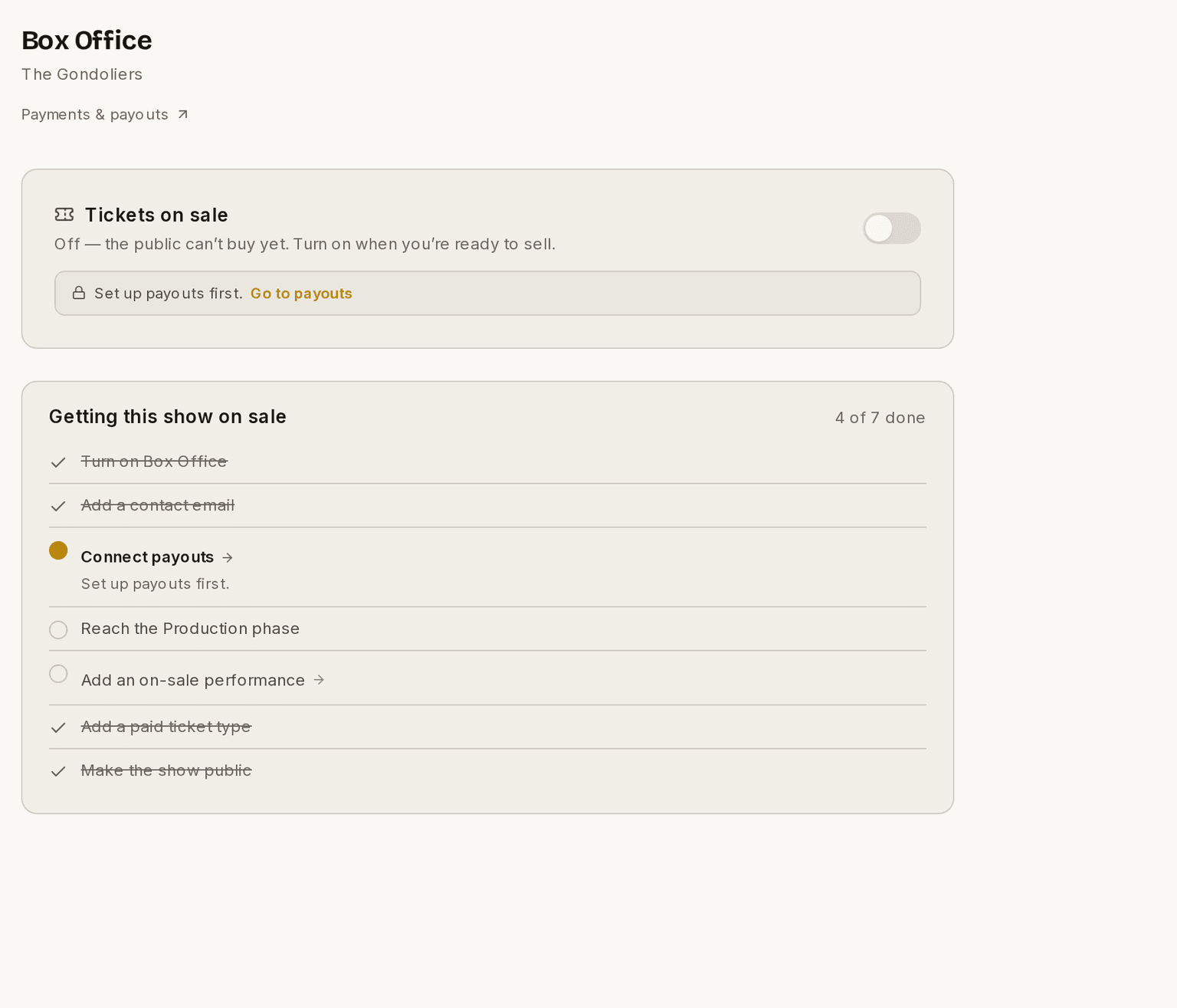
⚠ The toggle stays locked until the checklist is complete. The page tells you which step is missing rather than leaving you to guess.
Before a show can sell
A few things all have to line up, and Box Office ▸ Sales tells you which one is still missing rather than leaving you to guess:
- Box Office is switched on for your organisation, and Stripe is connected
- your organisation has a contact email address (Organisation ▸ Details)
- the production has reached the Production phase
- there's at least one on-sale performance still to come, and one paid ticket type
- the show is marked public
- you've turned on Tickets on sale
Marking the show public is the one that catches people out. A show that isn't public can't sell, no matter how completely everything else is set up. The switch is "Show this production publicly" on the show's Presence ▸ Public Website tab — and if you've got the public website switched off for your organisation, that tab is hidden, so Box Office offers you the same switch on the Sales page instead.
You don't need a public website to sell tickets. The two are separate: you need the show marked public, not the website turned on. Buyers reach your ticket page by the link you share, or through the What's On embed.
Why we insist on a contact address
You can't switch Box Office on without one, and you can't remove it while you're selling.
It's not box-ticking. Ticket money goes straight to your bank through Stripe, which means you are the seller — so it's your company's name on the buyer's bank statement, not Prompter's. Somebody who doesn't recognise a charge and can't find anyone to ask will ring their bank instead, and that becomes a chargeback against you. One address on your ticket and your confirmation email prevents most of that.
When online sales stop
Online sales stop at curtain up — the start time printed on the ticket. A performance sells until it begins, and then it stops.
Selling on the door is unaffected; this is only about buying online.
Each night of a run drops off your Buy Tickets page as it begins, so a five-night run carries on selling the other four. Nothing is deleted — the performance stays in your Box Office with its sales and its door scanner.
Once every performance has started, your Buy Tickets page stops offering a sale and tells visitors the show is no longer on sale, with a link back to the rest of your website. It doesn't show them a "page not found" — somebody following a link off an old poster or an email should get an answer, not a broken link. Tickets already bought stay valid, and your door scanner keeps working.
Box Office ▸ Sales says the same thing from your side: "Every performance has passed its sales cutoff, so add a new date to sell tickets." Add a performance in the future and you're selling again straight away.
Each night of a run drops off your Buy Tickets page as its own cutoff passes, so the rest of the run carries on selling.
What you sell in
Your organisation sells in one currency, chosen when you set it up and shown as "Sell tickets in". Every ticket price you enter is in that currency.
An Owner or Admin can change it later under Organisation ▸ Box Office, but only until your first ticket sells. After that it's fixed — past orders keep the currency they were bought in, and having two inside one organisation would make your reports disagree with your payouts. If it genuinely needs changing after you've sold, get in touch rather than working around it.
Which payment methods your buyers see
Card is always there. Alongside it, buyers may be offered a digital wallet like Apple Pay, Google Pay or Link, and — if you choose to allow it — a buy-now-pay-later option such as Klarna.
You choose this, not Prompter. Your Stripe account is your own, so the setting lives in your Stripe dashboard, under Settings ▸ Payment methods. Open it from Organisation ▸ Box Office ▸ Manage payouts on Stripe. Prompter deliberately has no screen for it — a second switch here would only disagree with the one that actually decides.
Prompter sets a sensible starting point for every organisation, and you can change it from there. If a method is greyed out and can't be switched on, that one is not available to organisations on Prompter.
Direct debit is the one you cannot switch on, and that is deliberate. A direct debit is accepted at the checkout but takes up to two working days to clear. A ticket has to be issued the moment it sells, so allowing it would hand over a seat before the money arrived. Bank transfers and voucher payments are blocked for the same reason.
⚠ Your own Produce+ subscription is different, and that is not an inconsistency. A New Zealand organisation can pay its own subscription by direct debit. A subscription can wait two days for the money to clear. A ticket cannot.
Two things worth knowing before you go looking:
- A wallet you can't see may still be working. Apple Pay only appears on Apple devices and in Safari; Google Pay only in Chrome with a card saved. Checking on your own laptop tells you about your laptop, not about your audience.
- Some methods only appear for certain countries or amounts. Buy-now-pay-later in particular hides itself on small purchases, so a $5 test ticket is not a fair test of it.
⚠ Buy-now-pay-later is worth a decision rather than a default. It can lift sales on higher-priced tickets, and some companies feel it sits badly with their audience — a charity fundraiser is a different thing from a $60 musical. It costs you nothing either way: you are paid in full, and the buyer settles with the provider.
How to add ticket types
- Open the production's Box Office ▸ Ticket types.
- Add a type, give it a name and a price.
- Repeat for each price a buyer might choose between.
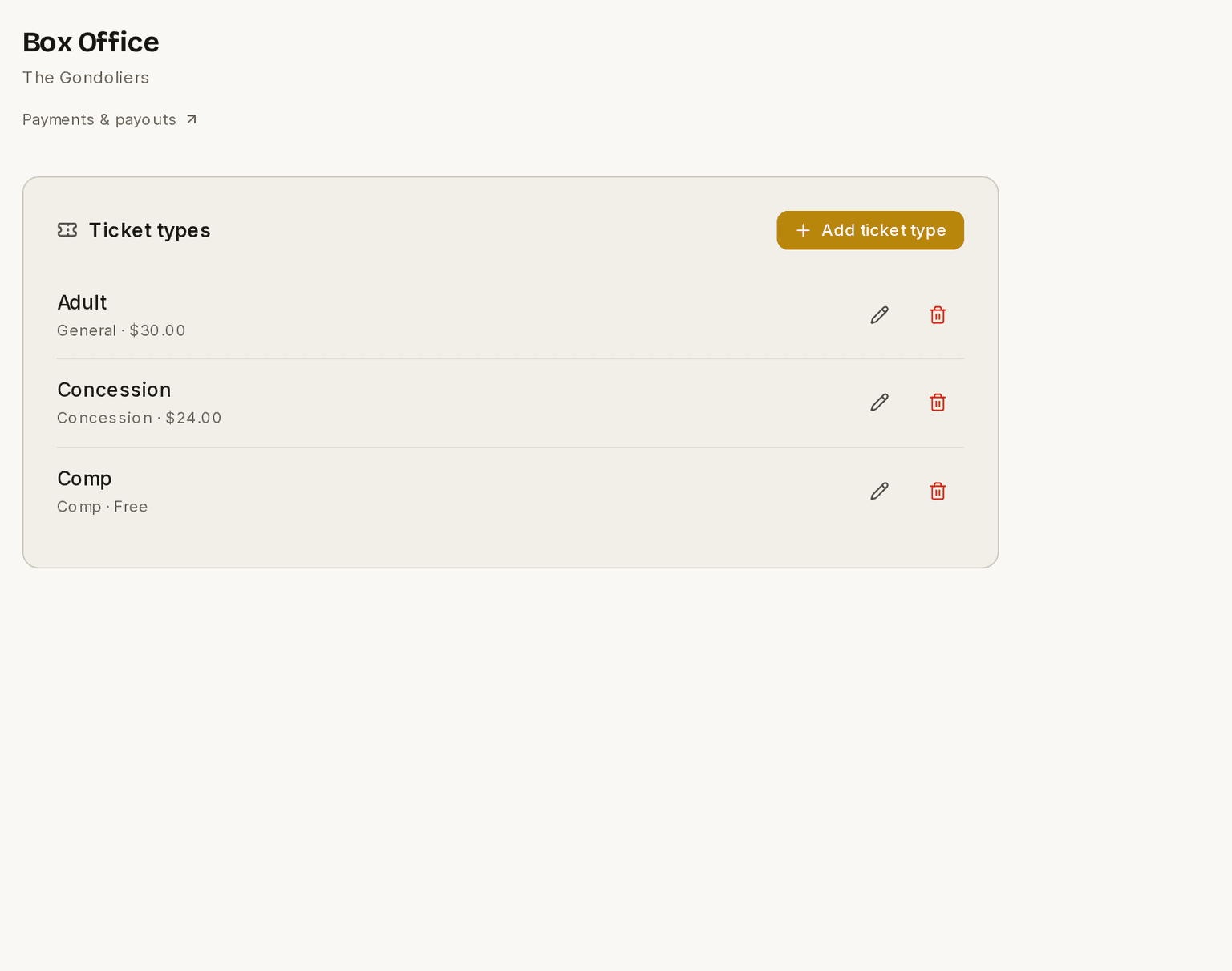
A free Comp is a ticket type like any other, priced at zero.
How to add performances
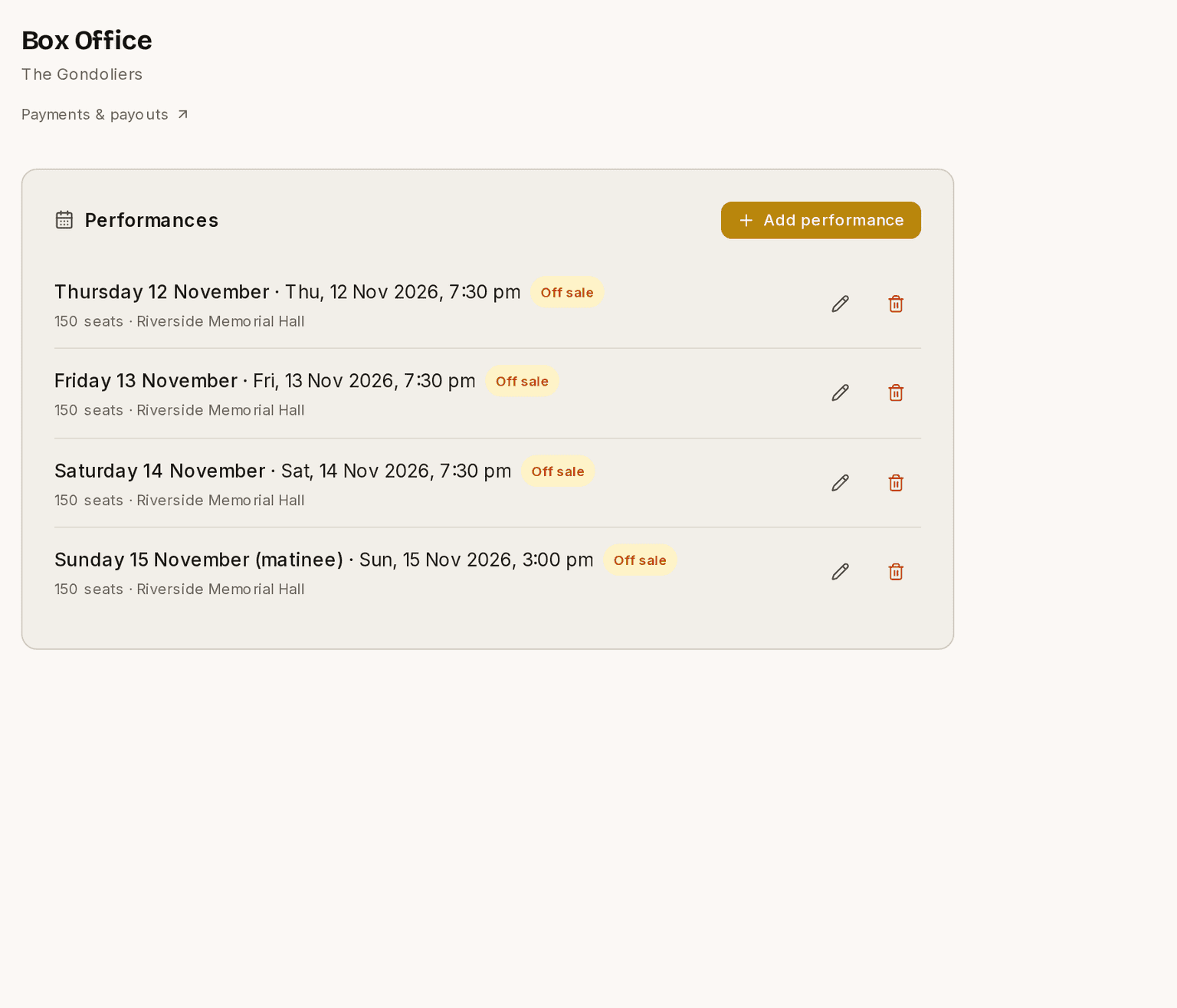
- Open the production's Box Office ▸ Performances.
- Add each night of the run, with its date and time.
- Set the capacity and the seating mode.
Selling tickets
Set up your performances and ticket types, and your public Buy Tickets page handles the rest — buyers choose a performance, pay, and get a confirmation email with QR tickets attached. Capacity is tracked per performance so you can't oversell a house.
Each performance can name the venue it plays at, picked from your venues rather than typed each time — useful when a matinee moves to a different hall. If you've given that venue a street address, it prints on the ticket, the confirmation email and your Buy Tickets page — worth doing, because the ticket is what somebody has open in the car on the way to a hall they've never been to.
What your buyer receives
Their confirmation email is a receipt, not just a "thanks for booking". It shows each ticket type and how many, the service fee, the booking fee, the total, your organisation's name, your tax number if you've entered one, a booking reference like 7CDEB6A9, and the date.
That matters because the sale is legally yours — the money goes to your bank, so you're the supplier. If your society is GST registered, your buyers need something they can claim against, and this is it.
Prompter doesn't work out the tax inside your ticket prices, and won't. It reports what was charged and under whose registration. We don't know your rate, whether you're registered, or whether you're exempt — plenty of UK societies' ticket sales are exempt entirely — and a tax figure we guessed would be worse than none. Tax on your ticket sales stays your business.
The link in that email doesn't expire. Opening it again gives them their QR tickets, the PDF, the receipt and an Add to calendar button — so when someone says they've lost their tickets, point them at the email rather than reissuing anything. It's also the copy to trust if an order was refunded: that page is rebuilt each time it's opened, while the email is frozen at the moment it was sent.
They can also put the performance straight in their diary: the email carries a calendar file that opens in Apple Calendar or Outlook, plus a Google Calendar link. The entry has the show, your venue and address, their booking reference and your contact address. Adding it from both the email and the order page updates one entry rather than making two.
One thing it deliberately doesn't have is Accept / Decline buttons. Some calendar invitations show those, and the replies would be emailed to you — where nothing reads them. Somebody would click Accept, believe they'd told you they were coming, and have told nobody. It's a diary entry, not an invitation, so it can't create a signal you'd never see.
Events show a finish time on the ticket, because the event form asks for one. Production performances show a start time and doors, but no finish — a curtain-down time is a guess, and a wrong one on a ticket somebody's arranged a lift around is worse than nothing.
Your conditions of entry
Latecomers, cancellations, refunds, photography, resale — your company's own rules, written once under Organisation ▸ Box Office ▸ Conditions of entry and shown to every ticket buyer.
They're offered before the buyer pays — a link beside the payment button, "[your company]'s conditions of entry", which opens them there and then without losing their basket. They're then repeated in full on the confirmation email, the order page and the ticket itself.
A link rather than the full text on the page is deliberate: the conditions print on the ticket regardless, and a wall of terms between the ticket picker and the Pay button isn't what your buy page should look like.
Changing them later
You can edit your conditions whenever you like, and doing so doesn't rewrite history. What a buyer agreed to is frozen onto their order at the moment they bought, so if you tighten a policy for next season, everyone who has already bought keeps seeing the version they bought under — on their order page and on a re-downloaded ticket. New buyers see the new version.
That's the same principle as your selling currency: what a completed order says shouldn't move under the person who completed it.
Each rule has its own box and its own tick:
- Tick it to include it, and edit the wording to suit your company.
- Untick it and the wording greys out but stays there. Turn a rule off for one season and it's waiting for you the next — you don't have to write it again.
- Reset wording puts our suggested text back, for when you've changed your mind or made a mess of it.
- Anything else at the bottom is for a rule the five boxes don't cover — under-12s, the bar, access.
A panel underneath shows exactly what your buyers will read, so there's no guessing.
Nothing is published until you press Save, and nothing is filled in for you. The suggested wording is an offer, not a default: a rule you've never ticked publishes nothing, even though you can see it in the editor. These end up as your company's published terms, so they should be your words, not ours — which is also why only an Owner or Admin can change them.
Leave everything unticked and no conditions are shown anywhere.
General admission or reserved seating
Every performance is sold one of three ways, chosen when you add or edit it under How seats are sold. New performances start as general admission, and you can change it right up until the first ticket sells.
- General admission — a ticket admits one person, without naming a seat. Buyers just choose how many they want, and the capacity you set is what stops the house overselling.
- Reserved seating — buyers pick their own seats. This needs the performance's venue to have a layout with seats placed on it. The map is the capacity here, so the capacity box is set aside.
- Reserved seating, whole tables — for a cabaret night: buyers take a table at a time instead of picking chairs.
It's one choice for the whole performance, not a setting on each table — in a cabaret room the answer is nearly always the same for every table, and if it isn't, you can sell a different performance a different way.
On a reserved performance, buyers see your room drawn in your own website colours, with the stage where you put it. They can switch to a plain list of seats instead — handy on a small phone, and it's how the page works for anyone using a keyboard or a screen reader. A seat is held for about five minutes while they make up their mind, and stays held while they pay, so nobody is undercut halfway through checking out. If they choose a wheelchair space, the page offers a companion seat in the same row or table rather than adding one for them — they choose whether to take it, and it costs the same as any other seat.
Choosing which layout you sell
If the venue has more than one layout — Full House, Cabaret, Stalls Only — the performance form asks which one this night is sold from. A venue with a single layout doesn't ask; it just uses it.
Once a seat has sold, the layout can't be swapped. Somebody is holding a ticket that says Table 3, Seat 2 in a room laid out a particular way, and changing the room underneath it would leave that pointing at a chair that isn't there. Refund those tickets, or add a new performance.
Your show's own seating
Box Office ▸ Venues shows the seating this production is actually selling, and it is yours to edit. It's your show's own copy of the layout, so a change here — a seat out for the sound desk, a row shortened — affects this show and nothing else. Your Production Secretary can make it without needing an org Admin.
The same page has a Preview button. It opens your real Buy Tickets page in a window, exactly as a buyer will see it, with the purchase button switched off. Nothing is held and nothing can be bought — it's for checking the room looks right before you go on sale.
Selling by the table
On whole tables, a buyer clicks a table rather than a chair and takes all of it or none. It appears as one line in their basket — "Table 3, 8 seats" — and it costs exactly what those seats cost: the seat count times your ordinary ticket price, so a table of eight at $30 is $240. There's no separate table price to set anywhere, and if you change your ticket price the table's total follows it.
A few things worth knowing before you turn it on:
- Rows are never sold whole, whatever you choose. Only tables go as a unit, so a room with rows down one side and tables at the front still sells those rows chair by chair.
- A seat you've marked unavailable isn't part of the sale. A table of eight with one broken chair sells as seven, and is priced as seven — not as eight with a gap.
- The buyer still gets one ticket per seat, so they can hand them round to the people joining them rather than arriving as a group of eight with a single ticket.
- It's all-or-nothing everywhere else too — you can't comp one chair of a table sold whole, sell one at the door, block one, or refund one. It's the whole table or nothing, which is what stops a table ending up half-sold and unsellable.
The seat then follows the ticket everywhere: printed on it, named in the confirmation email, shown on the order page, and displayed to your usher when it's scanned at the door — in the same words each time, so nobody has to interpret anything on the night.
You can't change how a performance is sold once it has sold a ticket — in any direction. Tickets already sold would either name no seat, or hold a seat nothing is counting. Refund them first, or add a new performance and sell that one the way you want.
Which hall a performance plays in
Your show names a venue, and so does each performance. That sounds like duplication until you need a matinee somewhere else — which is why they're separate.
A new performance picks up the show's venue automatically, because the usual case is playing the same hall every night. Change it on the performance itself only when that night genuinely is elsewhere.
The performance's venue is the one that sells tickets. It's the seat map a buyer picks from. So if your show says one hall and its performances say another, your public page advertises one building while your buy page sells seats in a different one. Prompter tells you when that happens: the show's details panel lists any performances at another venue and offers to move them across. Leaving them where they are is a perfectly good answer if you meant it.
One thing you can't do: change a performance's venue once a seat has sold on it. Somebody is holding a ticket that says Row A, Seat 12 in a particular building, and moving the room would leave that pointing at the wrong place. Refund those tickets first, or add a new performance at the new venue. This only applies to reserved seating — a general admission ticket doesn't name a seat, so those performances can move whenever you need.
Comps and the door
Issue complimentary tickets for reviewers, sponsors, or cast guests without taking payment. On the night, the usher door scanner reads each ticket's QR code and checks that person in — a ticket already scanned won't scan twice. Your sold count includes everyone who's valid or checked in, so your numbers stay right through the door.
Refunds and reports
See how a production is doing in its Box Office report — tickets sold and revenue, broken down by performance and ticket type. On a reserved performance the report also lists which seats have gone, so you can see at a glance whether the back rows are moving.
Underneath that is every order you've taken. Search it by buyer name or email, filter it by status, and refund any paid order from the button on its row.
A refund gives the buyer the ticket price back. The fees aren't refunded — that's stated to them at checkout before they pay, and it's how ticketing works everywhere. On a $25 ticket they paid $27.09 and get $25.00 back.
The useful part: a refund costs you nothing. You received $25.00 and you return $25.00, so you're square — whether that's one ticket or a whole cancelled season.
⚠ Refund here, not in Stripe.
You can refund from your own Stripe dashboard, and it will sync back to Prompter — but Stripe's refund box fills in the whole amount the buyer paid, fees and all. Stripe never returns its own fee, and it doesn't return ours either, so that difference comes out of your pocket. On a $25 ticket that's $2.09; across a cancelled 200-seat run it's over $400.
Refunding from the button here returns the ticket price only. If it's already happened, your Sales report will tell you and name the amount.
One thing you can't do yet: refund part of an order, everyone booked on one performance, or a whole show in a single action. For now it's one order at a time.
When a buyer charges back
A chargeback — Stripe calls it a dispute — is different from a refund, and the difference matters. A refund is your decision. A chargeback is the buyer going to their bank and asking for the payment to be reversed, and neither you nor Prompter can decline it.
Here's what happens the moment one arrives:
- Stripe takes the money straight back out of your Stripe balance, along with a dispute fee. This happens before anyone decides anything.
- The tickets on that order stop working. Scan one at the door and the usher sees "The payment for this ticket was reversed by the buyer's bank — not valid for entry. Check with the box office."
- Their seats are held, not put back on sale. Nobody else can buy those seats while the bank decides. This matters: most chargebacks are resolved in the seller's favour, and the buyer then needs the seat they chose.
- Everyone with owner or admin access gets a notification, with the amount and a link straight to Stripe.
You respond in your own Stripe dashboard, not in Prompter. Evidence goes to the bank through Stripe, and there's a deadline — so don't sit on it. Prompter can't argue the case for you: you're the merchant of record, so this is between your company and the buyer's bank.
⚠ Don't try to refund a disputed or charged-back order.
The bank has already taken that money. Refunding on top of it pays the same person twice, out of your balance. Prompter blocks it and tells you why — but if you're in Stripe, the same rule applies.
This holds after the case closes too. Losing doesn't give the money back, so refunding a charged-back order is the same mistake at a worse moment.
If you win, the tickets start working again on their own — in the same seats. A dispute suspends them rather than cancelling them, so there's nothing to reissue and nobody to email.
If you lose, the money and the dispute fee are gone, and the seats go back on sale. The tickets are marked charged back, which is deliberately not the same as refunded: a refund is your decision, a chargeback is the bank's. Your sales figures keep the two apart, because you have to reconcile against both.
Genuine chargebacks are rare in community theatre — most are someone not recognising the name on their statement. Your Stripe statement descriptor and the contact details on your buy page are the cheapest protection there is.
"My tickets never arrived"
This is the most common call a box office gets, and you can answer it yourself.
Open the show's Box Office, find the order in the Orders list, and use:
- Re-send — sends the confirmation email again, with the tickets attached, to the address on the order. Beside the button you'll see when it last went out.
- Tickets — opens the buyer's own ticket page, the same one their emailed link points to. From there you can download the PDF and hand it over, read out the booking reference, or check the seats.
Try Re-send first. Most of these calls end there.
What "Sent" means. It means the email was accepted for delivery, not that it reached an inbox — no system can see that. If it keeps not arriving, check the spelling of the address, then ask the buyer to look in spam.
Why this is worth doing before anything else. A buyer who can't find their tickets and can't get an answer is the buyer who rings their bank. Re-sending costs nothing and heads off a chargeback you'd otherwise have to fight.
It also gives you evidence. Prompter now records every confirmation it sends for an order. If that buyer does charge back claiming they never received the tickets, that record is what your bank wants to see, and you submit it through Stripe.
Fees
Prompter adds a small ticketing fee (2.5%) to tickets sold through Box Office — that's how the platform funds itself while staying free for companies that don't ticket through it. The rate is the same on every plan, free or paid: you are not charged more for being on the free plan, and upgrading doesn't lower it. The fee is added to what the buyer pays, not taken out of your takings. Organisations that don't sell tickets through Prompter pay nothing.
The ticket buyer pays the fees, not you. On top of your ticket price they pay a service fee (our 2.5%) and a booking fee covering card processing. Both are itemised before they pay, so nothing is hidden — and you receive the full face value of every ticket you sell.
On a $25 ticket:
| Your ticket price | $25.00 |
| Service fee (our 2.5%) | $0.63 |
| Card processing | $1.08 |
| Buyer pays | $26.71 |
| You receive | $25.00 |
There's no setting for this and no way to absorb the fees on the buyer's behalf. If you'd rather your patrons paid a round number, the lever is your ticket price.
That percentage includes GST, so it's the percentage actually taken, wherever you are — there's nothing added on top. Tax on the tickets you sell is a separate matter and stays yours; see Location and tax for the distinction.
Seeing the GST inside the fee
If your organisation is based in New Zealand and the sale was in New Zealand dollars, Sales and Insights both show the GST contained in what Prompter charged you — a line under the Prompter fee reading "of the $18.00 charged, $2.35 is New Zealand GST". The fee is taken automatically out of each sale rather than invoiced to you afterwards, so without this there'd be nothing on record telling you how much of it was tax.
You won't see that line if your organisation is based outside New Zealand — no New Zealand GST applies to you, so there is nothing to state — or if the sale was in another currency, because New Zealand GST is worked out in New Zealand dollars and Prompter won't guess at an exchange rate to show you a figure that looks right but isn't.
There's a formal tax invoice too. One document per calendar month, every fee itemised by order, downloadable as a PDF from Organisation ▸ Billing (owner only). It's issued by Prompter Solutions Limited under GST 149333347, and it covers only what Prompter charged you — it isn't a record of your ticket income and says nothing about tax on your own sales.
Its GST line says one of three things, depending on you and on the currency:
- New Zealand organisation, billed in NZD — it states the GST inside the total.
- Organisation outside New Zealand — no New Zealand GST is charged; that's a zero-rated export.
- New Zealand organisation, block in another currency — it says the fee is GST-inclusive but that the GST isn't stated in that currency. GST was charged; we just don't hold an exchange rate, and a tax figure we'd have to invent isn't one you could file.
Asking your audience to round up
This is off until you turn it on. An Owner or Admin switches it on at Organisation ▸ Box Office, below the fees panel.
Once it's on, your buyer sees one extra choice on the way to paying. Their total comes to $26.71, so Prompter offers them $27.00 — and the 29c is a gift to your company. Two larger amounts sit beside it, $28.00 and $29.00, for somebody who wants to give more.
Nothing is ticked for them. "No thanks" is already selected when the page loads, and a buyer who doesn't look at it pays exactly what the tickets cost. A pre-ticked donation is a dark pattern and Prompter won't ship one.
The amounts follow the currency you sell in, so they're whole units of your own money rather than a fixed list.
What you keep
All of it. Every cent of a round-up reaches your company.
Prompter's 2.5% is charged on ticket face value, and a gift isn't a ticket — so we take no percentage of a contribution.
Stripe still charges card processing on the whole payment, the gift included, because that's the cost of moving the money. Prompter pays that part out of its own ticket fee. A 29c round-up costs us about a cent and reaches you as 29c.
Where it shows up
- On the buyer's receipt and confirmation email, as its own line. It is never folded into the ticket price.
- In your production budget, as an income category called Audience contributions, sitting apart from Box Office ticket sales. It carries the same padlock as the other two automatic lines.
Keeping the two apart is deliberate. A gift and a ticket sale are different kinds of money, and your treasurer needs to tell them apart without doing arithmetic.
If you refund the order
A refund gives back the ticket price. It does not give back the gift. Somebody who gave you 29c and then couldn't come has still given you 29c — the gift was never part of the thing being cancelled.
The condition, which is the part to read properly
Contributions must be given freely, with nothing offered in return. If you give supporters something in exchange, this is no longer a gift and your tax treatment may change.
That sentence is on the screen that turns this on, and you confirm it before anything goes live.
It matters because a gift generally sits outside GST and VAT while ticket income doesn't. The moment you offer something back for it — a drink at interval, entry to a draw, a better seat — it stops being a gift and becomes a sale of something, and your tax position moves with it.
Prompter can't advise you on this and won't try. Your treasurer or your accountant can. Ask them before you turn it on, rather than after your first season with it.
These guides describe Prompter as it works today. Create a free account to try it, or see what it costs.