Account & organisation
Events
Run social nights, workshops and AGMs — the things that aren't full productions.
Not everything your company runs is a full production. A cast-and-crew social, a weekly improv session, a props-building working bee, the AGM, a members' quiz night — these don't need phases, casting, a budget or ticketing, but you still want to put them on the calendar and let people know.
That's what Events are for. You'll find them under Presence ▸ Events — they sit beside your public website because a public event shows up there, though an event can just as easily stay internal.
You will find Events under Presence in the menu on the left.
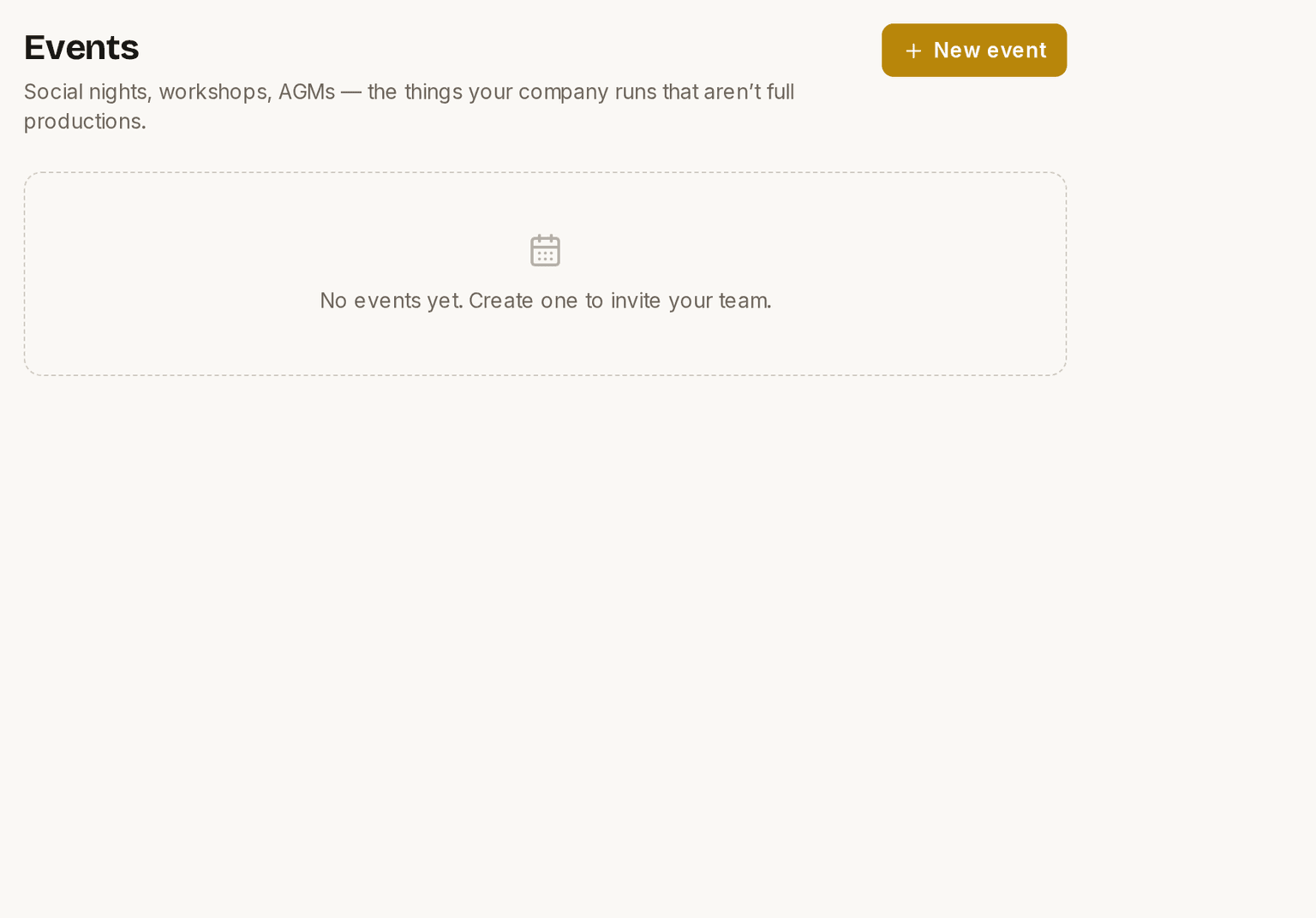
Screenshots show the light theme. The app looks the same in dark.
How to create an event
- Open Presence ▸ Events.
- Click to add an event.
- Give it a title, a date and a time, and a location.
- Add a description, and an image if you have one.
- Save.
What an event holds
Each event is deliberately simple:
- a title
- a start date and time (and an optional end)
- an optional venue, picked from your venues (or added on the spot with + New venue…)
- an optional description — what it is, who it's for, what to bring
- an optional image — a photo or poster, shown on the listing and the event's own page
- an optional organiser contact — a name, email and phone, so people can get in touch
Times are shown in your organisation's timezone, the same one that drives rehearsals, auditions and ticket confirmations.
Creating and editing events
Your organisation's admin team — Owners, Admins and Presence Managers — create events with the New event button, and can edit or delete any event. (Cast and crew don't see the Events list; it lives in the admin-only Organisation area.)
Upcoming events show first; past events tuck away under a Past events toggle so the list doesn't grow forever.
Repeating events
For something that runs regularly — a weekly workshop, a fortnightly rehearsal-room session, a monthly social — set Repeats to Weekly, Fortnightly or Monthly. Add an Until date if the series has an end; leave it blank and it just keeps going.
A repeating event is one entry, not a copy of the same thing every week. It shows its schedule ("Weekly on Tuesdays") alongside the next date it's on, and it stays in your upcoming list — and on your website — until the series finishes. Edit it once and every future occurrence changes.
The time holds across daylight saving, so a 7pm workshop stays at 7pm when the clocks change.
The organiser contact
Every event can point people at whoever's running it. Add an organiser contact — a name, an email, a phone number, or any combination — and it shows on the event: on the public event page it becomes a "Contact organiser" button (email) and a tappable phone number, so someone can ask a question. Leave it blank and no contact shows.
Collecting RSVPs
If you'd like to know who's coming, tick "Collect RSVPs" when you create or edit the event. A Register to attend button then appears on the public event page, opening a short form: name, email, and an optional phone number.
RSVPs sit beside the organiser contact rather than replacing it. They answer different questions — "I'm coming" and "I've got a question" — so an event can have both, either, or neither.
An RSVP is a headcount, not a ticket. There's no limit and nobody gets turned away: it's for the working bee where you need to know how many sausages to buy, or the workshop where it helps to know roughly who'll show up. If you need to cap numbers, that's a free ticket rather than an RSVP — see Selling tickets below.
Everyone who registers gets a confirmation email branded to your company, with a link that lets them withdraw themselves if plans change. That link is theirs alone and needs no login, so you're not fielding "please take me off the list" emails.
Seeing who's coming
On the event in your Events list you'll see how many people have registered; open it and you get the full list — names, emails, phones, and (for a repeating event) which date each person is coming to. From there you can:
- Copy emails — every registrant's address, ready to paste into a message
- Export CSV — the whole list as a spreadsheet
- Remove a registration — for a duplicate or an obvious test entry
Registrations are private to your organisation. Visitors never see who else has registered, or how many have — a number like "2 people coming" is a reason not to come, and it isn't anyone else's business.
For a repeating event, people register for a specific date — the next one coming up, which is named on the form so nobody thinks they've signed up for the whole term.
Showing an event on your website
When you create or edit an event, you can tick "Show on our public website." The event then appears in a "What's On" section on your Presence site, alongside your shows and news — handy for a public quiz night, an open workshop, or a fundraiser.
Each public event is clickable: a visitor taps it in What's On and lands on the event's own page — the image, the date and time, the venue and the full description, styled to match the rest of your site. If you added an image, it leads the page and doubles as the preview when the link is shared. (Managers see a "View page" link on public events in the Events list, so you can check how it looks.)
Choosing the layout
What's On can show as a List or a Grid of cards. That's your choice, not the visitor's: open the Website editor, find the What's On section under Design, and pick the layout from its dropdown — the same place you show/hide or reorder sections. List is the default; Grid suits events with images.
A few things worth knowing:
- It only appears while your Website module is turned on. If your public site is off, the event simply stays internal.
- Past events drop off the public list automatically — there's no cleanup to do.
- An event running across more than one day shows both dates — "Sat 18 – Sun 19 July 2026".
Selling tickets
Sometimes an event needs more than a headcount — a quiz night at $20 a head, a fundraiser, a workshop with a dozen places. For that, tick "Sell tickets" when you create or edit a one-off event that is still to come.
Two kinds of event can't be put on sale, and both show the tickbox greyed out. A repeating event can't — it has no single date to sell against, so make it a one-off first. And an event that has already happened can't — there's no useful ticket for a night that's been and gone, and for a new date you're better off making a new event. Turning selling off on a past event is always allowed, so if an old one is somehow still live you can stop it straight away.
Online sales also stop when the event starts. Same rule as a show's performances: curtain-up is the cut-off, with no grace period after it. Once it's under way the booking page tells visitors it's no longer on sale rather than showing them a broken link, and tickets already booked stay valid.
Ticking it drops down a couple of fields:
- Ticket types — a name and a price for each; add as many as you need. A price of 0 is a free ticket the public books themselves — the way to run a capped free event, where an RSVP would let anyone turn up.
- Capacity — the total number of tickets for the event (0 = unlimited).
This is deliberately simpler than a show's Box Office: no separate performance nights, no comps, no fee settings, no sales reports. An event is one date with a handful of ticket types. If you're running something that needs all that, it's a production, not an event.
What the buyer sees
Selling tickets uses your Box Office module and your public event page, so make sure both are on — turn Box Office on in the org area, and tick "Show on our public website". Your event page then gets a "Buy tickets" button, and What's On marks the event "Now booking".
A buyer picks their tickets and — for a free ticket — just gives their name and email; a paid ticket goes through Stripe (which needs your payouts connected, the same as a show). Either way they're emailed a ticket with a QR code.
At the door
On the event in your Events list, a ticketed event shows how many of your capacity have sold. Open it and you can turn on the optional door scanner — a QR your helpers scan with their phones to check tickets in at the door, no login needed. Skip it and the ticket is simply proof of purchase.
Seeing what sold, and refunding a buyer
Open the ticket panel on the event card and choose Sales, orders & refunds. You get the same picture a show gives you: how many tickets went, the split by ticket type, and a searchable list of every order.
From an order you can do the two things people actually ring up about — refund the buyer, or re-send their confirmation email if it went astray.
Refund here rather than in Stripe. A refund in Prompter returns the ticket price and keeps the booking fee, which the buyer was told about at checkout — so it costs your organisation nothing. Stripe's own refund button hands back the whole charge including both fees, and your organisation is left paying fees it never received.
What events aren't
Events are intentionally lightweight. They don't carry phases, cast lists, HODs, budgets or auditions — that's what a production is for. And event ticketing is deliberately a rung below a show's Box Office to set up — no multiple performances, no comps, no fee controls. It is not a rung below on money: an event sale carries the same fees as a show's, and you refund and re-send from the sales screen exactly the same way. The line between an RSVP and a ticket is worth remembering: an RSVP is an uncapped headcount, a ticket is a limited, issued thing you check at the door.
These guides describe Prompter as it works today. Create a free account to try it, or see what it costs.