Running your production
People & cast
Add your team, send invites, and organise everyone by department.
The People page is your production's company list — cast, crew, creatives, and committee. It is where you add people, set what they can access, and keep their contact details.
You will find it under People & Comms in the menu on the left.
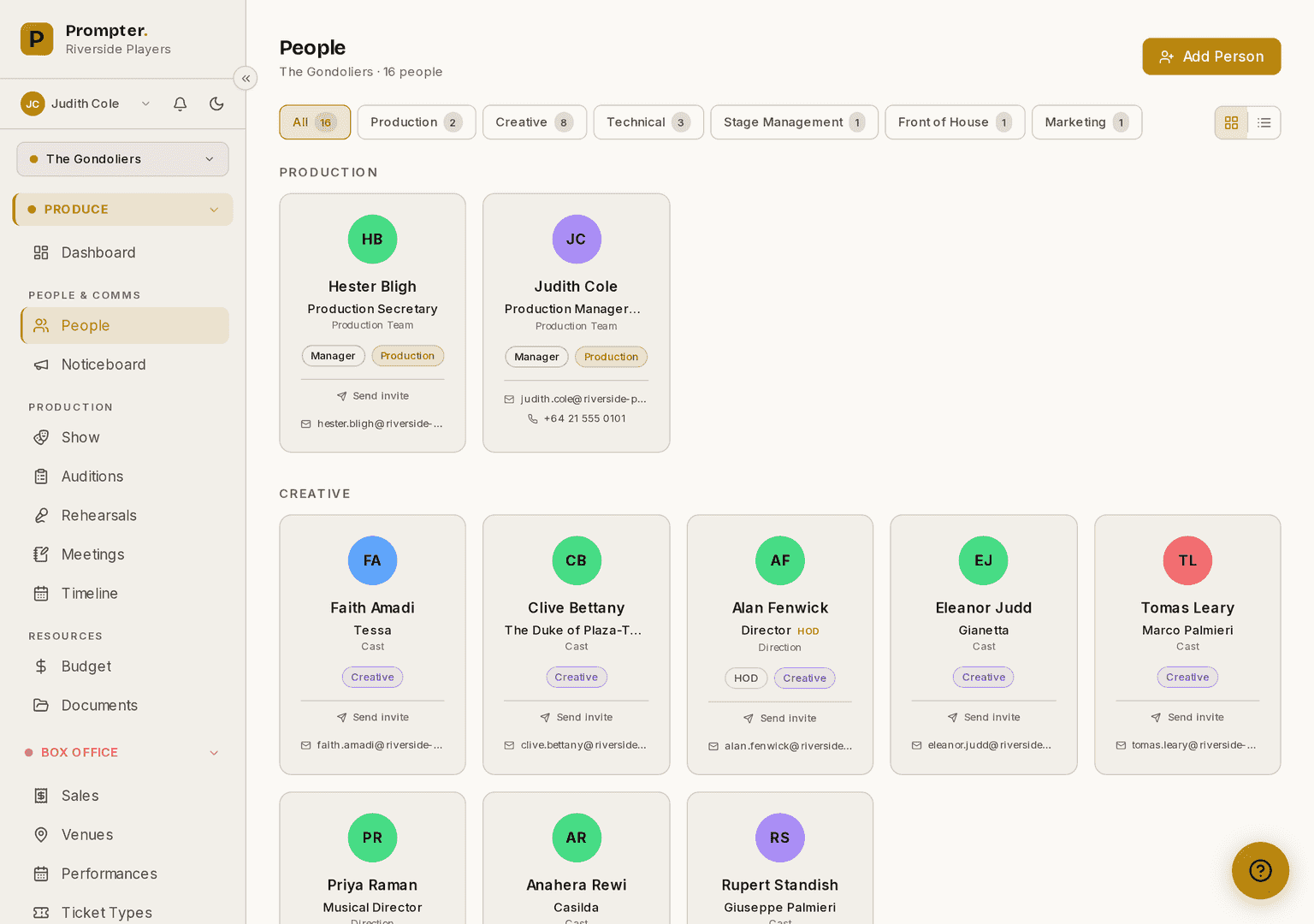
Screenshots show the light theme. The app looks the same in dark.
How to add somebody
- Open People from the menu on the left.
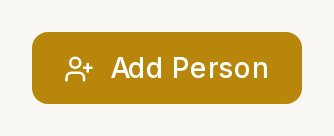
- Click Add Person, at the top right.
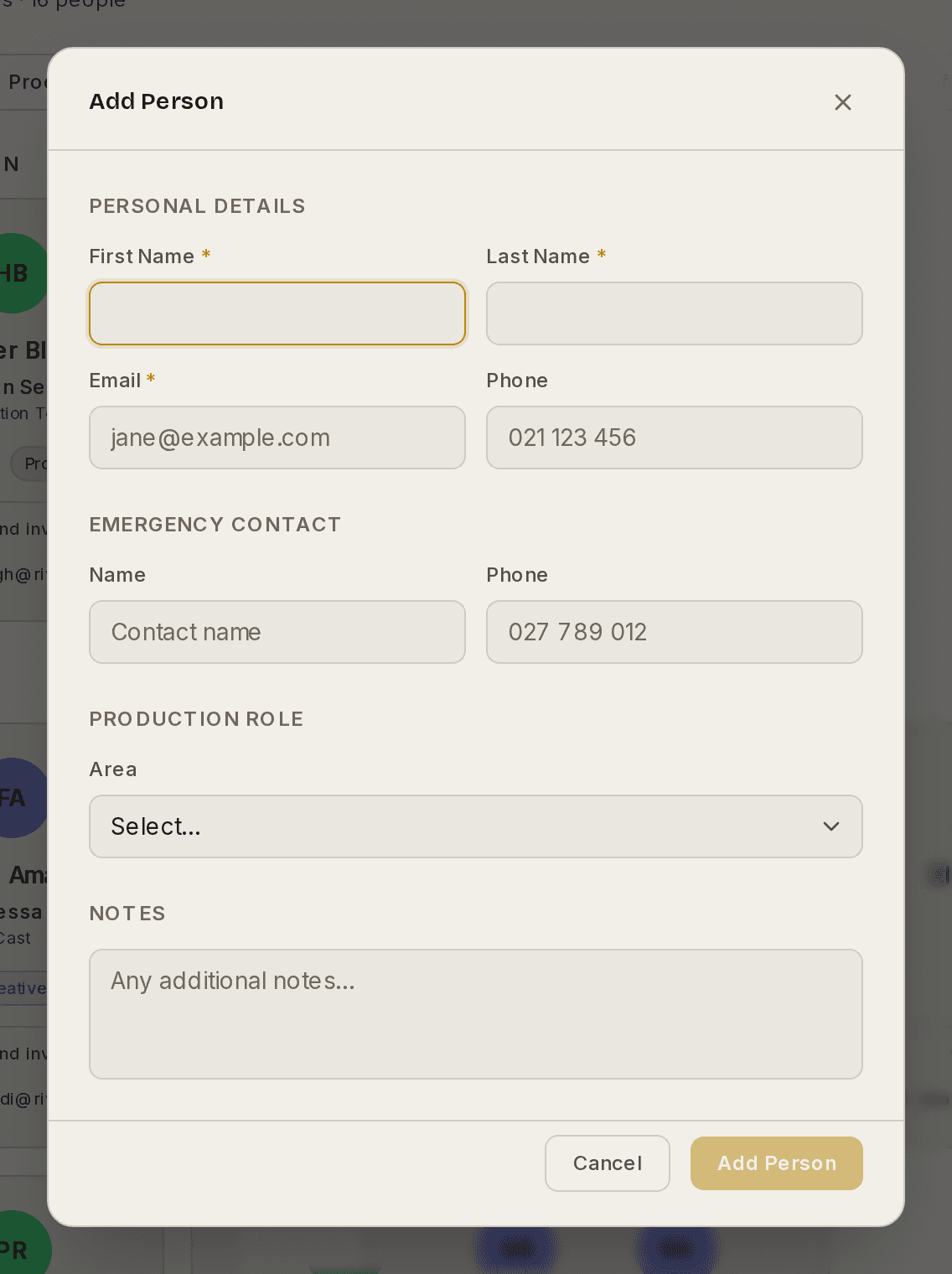
- Type a first name, a last name and an email address. These three are required.
- Add a phone number, an emergency contact or notes if you have them. These are optional.
- Choose an Area under Production Role to put the person in a department. You can do this later instead.
- Click Add Person to save.
What happens to the email address
Prompter checks the address against your organisation's existing records:
- If that person is already in your organisation, Prompter links them. It does not create a second record.
- If that person is already in this production, the form tells you.
⚠ An email address is required, and adding somebody sends an invitation. If you do not have an address for a volunteer, you cannot add them yet.
Cast you have auditioned
You do not have to add an auditionee by hand.
When you set somebody to Accepted on the casting board, Prompter creates their Person record and adds them to the cast in that role. Their phone number and emergency contact come across with them. Their audition files join the production documents under the People category.
So add a person here only for somebody who did not come through auditions — crew, committee, or a player in the orchestra.
See How to record casting decisions for the steps.
How to invite somebody to log in
Prompter emails an invitation automatically when you add a person whose address has no Prompter account. You do not have to send it yourself. The Add Person form says so before you save, so a long list of volunteers holds no surprises. The link works for 24 hours. The person clicks it, lands on a welcome page, and sets up their account.
If the person already has a Prompter account, Prompter links them immediately and sends no invitation.
To send an invitation again:
- Open People.
- Find the person's card.
- Click Send invite. The button reads Resend invite if an invitation went out already.
⚠ A person who already has a login cannot be invited again. Resend links their account instead and tells you so. Ask that person to sign in. This is common when somebody opened the invitation, saw the welcome screen, and closed the tab — that first click already made the account, so no invitation is left to send.
An invitation link works once and lasts 24 hours. A later click tells the person it has expired. That page offers "I was invited and still can't get in", where they give their email address. Prompter notifies you in the app and by email, so you can send a fresh invitation.
You do not have to wait to be asked. Press Send invite beside a person's name whenever you think a link has gone stale.
Prompter also chases it for you. Two days after an invitation goes out, if the person still has not signed in, Prompter emails your owners and admins once — naming the person, and linking straight to the page the Resend button is on. It says this only once per invitation, and only while the invitation is less than a fortnight old. After that, asking the person directly is more use than a third link.
⚠ You will not get that email about somebody who opened the link and stopped. That first click already made their account, so there is no invitation left to resend and Prompter would be pointing you at a button that cannot help. Send them to Forgot password on the sign-in page instead.
How to see who has accepted
Each person's card tells you where they are, above the invite button.
| What the card says | What it means |
|---|---|
| Nothing at all | They have an account and can sign in. This is the normal, finished state. |
| Invited 17 Sept 2026 · not yet accepted | The invitation went out on that date and they have not set up their account. |
| No invitation recorded | Prompter holds no record of an invitation for them. |
⚠ "No invitation recorded" does not promise that none was sent. It means Prompter has no record of one, which covers an invitation that was never sent and one that was attempted and did not go. Either way the answer is the same: press Send invite. Sending again is safe.
The date is the day the invitation went out, shown in your organisation's timezone. If somebody was invited weeks ago and still has not accepted, a phone call usually beats a fourth email.
How to remove somebody
⚠ There are two removals and they do different things. Read both before you choose.
- Open People.
- Click the person's card to open Edit Person.
- Scroll to the bottom of the panel.
- Click Remove from production or Delete from organisation.

Remove from production takes the person out of the show you are in now. They stay in your organisation, keep their place in the Directory, and stay on every other production. This is the everyday one — somebody is not in this year's show.
Delete from organisation removes the person from every production and from the Directory at once. Use it for somebody who has left the company, or who was added by mistake. Only an organisation owner can do it, and Prompter asks you to confirm.
What a delete does and does not do
- Their login is not affected. If the person uses Prompter with other companies, they carry on there. Each company keeps its own record of a person.
- The past is kept. Old rehearsal registers, meeting attendee lists and past casting still show the name, so your records still read correctly.
- You can add them back. The email address is freed, so adding the person again works as if they were new.
- You cannot delete yourself this way. Use Profile ▸ Close account.
- You cannot delete somebody who is still on the admin team. Remove them at Organisation ▸ Team first. Deleting them here would leave their access exactly as it was.
⚠ Deleting a person does not erase their personal details. Their contact details stay in the record. If somebody asks you to erase their details, get in touch and we will help.
Departments
Prompter groups your company into six departments:
- Production
- Creative — this is where Cast and Orchestra sit
- Technical
- Stage Management
- Front of House
- Marketing
Each department holds more specific areas. Lighting, Sound, Wardrobe and Props are all Technical, for example.
Click a department along the top of the People page to filter the list. The number beside each name tells you how many people are in it. Departments also let you call a whole group to a rehearsal at once.
How to attach a document to a person
- Open People.
- Click the person's card to open Edit Person.
- Find the Production Documents section.
- Click Upload document to add a new file, or Attach existing to link a document already in the production.
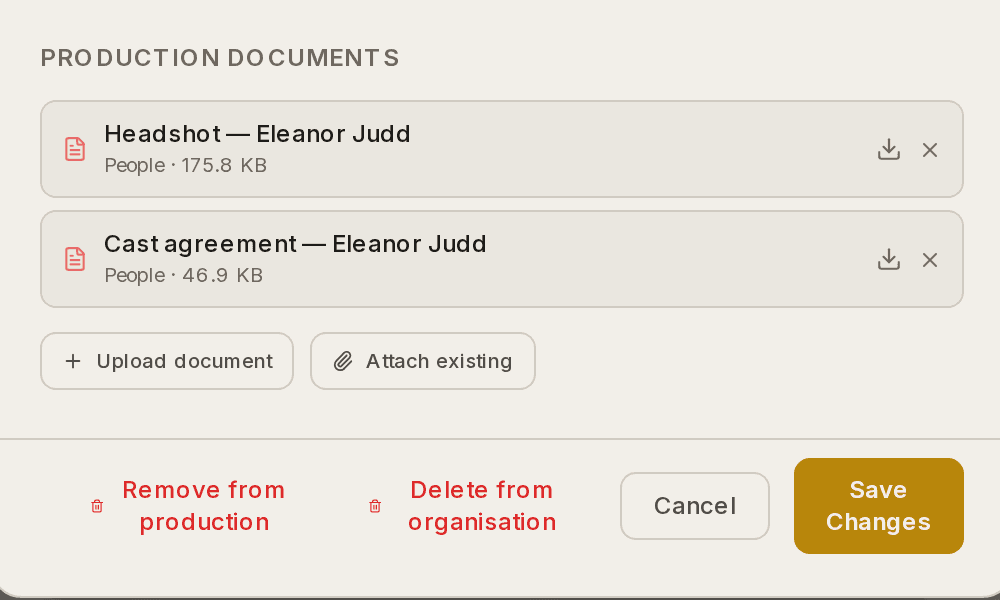
Prompter files anything you upload here under the People category and links it to that person. It is useful for headshots, contracts and availability forms. The file appears both on the person and in the Documents list.
These guides describe Prompter as it works today. Create a free account to try it, or see what it costs.